
Expense Tracker Google Sheets Template — Free & Easy (2026)
This expense tracker Google Sheets template gives you a category dropdown, a month-by-month dashboard, and a 12-month summary — all in four clean tabs. Log an expense in under 10 seconds. See exactly where your money goes without linking a bank account or paying for software. Free to copy, no email required.

12 min read
✨ What’s inside this expense tracker Google Sheets template
- Setup tab — name, currency, tracking year and 12 fully customisable expense categories with monthly budgets
- Expenses tab — the only tab you type in. Log date, category, description and amount in seconds
- Dashboard tab — type a month number (1–12) to instantly see spending vs budget by category for any month
- Monthly Summary tab — all 12 months side by side, every category, over/under budget row, annual totals
- Category dropdown — 12 pre-built categories, fully renameable, no typing errors
- Auto budget comparison — see over-budget categories at a glance every single month
- Works in Google Sheets and Excel — 280 formulas, zero errors
📋 Table of Contents
- What is an expense tracker Google Sheets template?
- Who is this expense tracker Google Sheets template for?
- What’s inside the template?
- Step 1 — Setup tab
- Step 2 — Log expenses
- Step 3 — Dashboard tab
- Step 4 — Monthly Summary tab
- Tips for using this expense tracker Google Sheets template
- 6-week walkthrough: building the habit
- Common mistakes to avoid
- Expense Tracker Pro — what’s upgraded
- Expense tracker Google Sheets template vs budgeting apps
- FAQ
What is an expense tracker Google Sheets template?
An expense tracker Google Sheets template is a pre-built spreadsheet that lets you log every expense, categorise your spending with a dropdown, and see a monthly dashboard of where your money actually went — all inside your own Google Drive for free.
Unlike budgeting apps, this expense tracker Google Sheets template needs no bank connection, no subscription and no account. You log what you spend manually, select a category, and the formulas do the rest — calculating totals, comparing against your budget and updating the 12-month summary automatically.
The result is a clear, private picture of your spending that you fully own and control. This expense tracker Google Sheets template works the same way whether you’re in the US, UK, or Australia — currency is a single cell you set once.
The counter-intuitive truth about expense tracking: Most people assume they overspend on big purchases. The data almost always reveals it’s small recurring expenses — subscriptions, coffee, impulse food shops — quietly draining the most. A simple expense tracker Google Sheets template that takes 30 seconds per entry surfaces patterns that years of vague awareness never will.
Who is this expense tracker Google Sheets template for?
This expense tracker Google Sheets template is built for anyone who wants clarity on their spending without the complexity of a full budgeting system:
- People new to tracking spending — the setup takes under 5 minutes with no learning curve
- Anyone who tried budgeting apps and gave up — no bank login, no subscription, no friction
- Privacy-conscious users — your expense data stays entirely in your own Google Drive
- Students and young professionals — it works on any device, forever — completely free
- Households on a tight budget — see exactly which categories are over limit each month
This expense tracker Google Sheets template focuses on one thing: logging and understanding expenses clearly. For a full personal finance system with income planning and savings goals, the free Budget Tracker Google Sheets template is the next step up. And if you want your finances living alongside tasks, goals, and habits in one place, the Notion Life OS Template pulls everything into a single dashboard.
What’s inside the expense tracker Google Sheets template?
📊 4 tabs — each with a clear job
Step 1 — How do I set up the expense tracker Google Sheets template?
Open the Setup tab first. This takes 5 minutes and you only do it once — every other tab pulls from here automatically.
Enter your personal details
Type your name in C12, currency symbol in C13 (e.g. $, £, €), and the year you’re tracking in C14. The Dashboard header uses your name automatically.
Customise your expense categories
The expense tracker Google Sheets template comes pre-loaded with 12 categories: Housing, Food & Groceries, Dining Out, Transport, Health, Entertainment, Shopping, Personal Care, Education, Travel, Savings and Other. Rename any in column B to match how you actually spend — the change flows through to the dropdown, Dashboard and Monthly Summary instantly.
Set your monthly budget per category
Enter a spending limit for each category in column C. Base these on 2–3 months of actual bank statements — not aspirations. The Dashboard compares your real spending against these numbers every month.
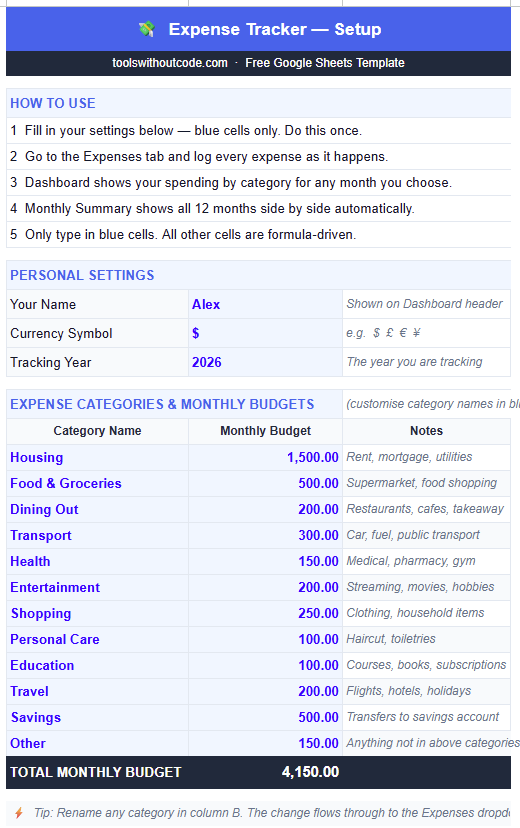
Only type in blue cells. All other cells are formula-driven. If you accidentally overwrite a formula, press Ctrl+Z immediately.
Step 2 — How do I log expenses in this expense tracker Google Sheets template?
The Expenses tab is the only tab you update regularly in this expense tracker Google Sheets template. Every expense gets one row — date, category, description and amount. That’s all it needs to power the Dashboard and Monthly Summary.
Enter the date
Type the expense date in column B using the format DD MMM YYYY — e.g. 15 Jun 2026. The Dashboard filters by month and year from this column automatically.
Select the category
Click column C — a dropdown appears with all 12 categories from Setup. Pick the right one. Consistent category selection is what makes the Dashboard accurate — 2 seconds choosing the right category pays off every month.
Add description and amount
Type a description in column D (optional but useful — “Monthly rent”, “Tesco shop”, “Netflix”) and the amount in column E. The Dashboard and Monthly Summary update instantly.
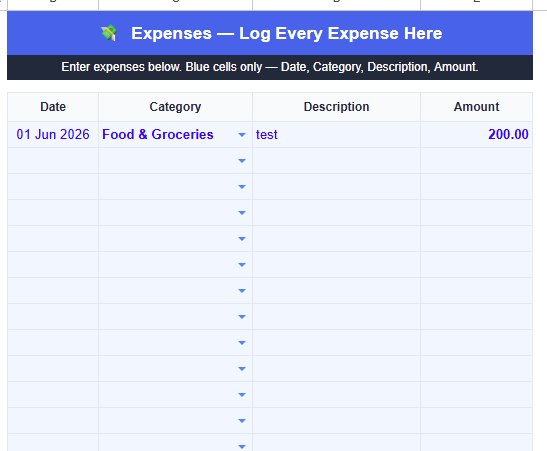
Log expenses weekly, not daily. Pick one time per week — Sunday evening works well — and log everything from the past 7 days. Weekly logging keeps your expense tracker Google Sheets template accurate without turning it into a daily chore.
Step 3 — How does the expense tracker Google Sheets template Dashboard work?
The Dashboard is where this expense tracker Google Sheets template earns its place. Type any month number in cell C4 — 1 for January, 6 for June — and the entire view rebuilds to show that month’s spending instantly.
The top row shows 5 KPI cards: Total Spent, Monthly Budget, Remaining, Number of Transactions and Percentage of Budget Used. Below that, the full category breakdown compares what you budgeted against what you actually spent — so you can see exactly where you went over and where you have room left.
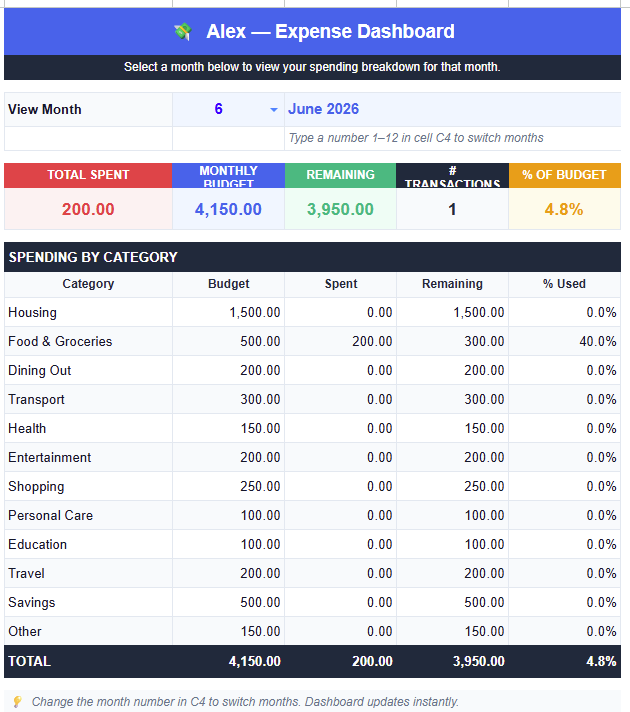
Check the Dashboard on the 15th of each month. Halfway through you still have time to course-correct. If Dining Out is already at 80% of budget by the 15th, you know to pull back. Checking at month end is too late to act on anything.
Step 4 — What does the Monthly Summary show in the expense tracker Google Sheets template?
The Monthly Summary tab requires zero input — it builds itself automatically from the Expenses tab. It shows all 12 months side by side: every category, every month, with totals and an over/under budget row.
This is the tab that makes the expense tracker Google Sheets template genuinely powerful over time. After 3–4 months of consistent logging, the Monthly Summary starts revealing patterns that change how you spend — which months are consistently expensive, which categories creep up quietly, which subscriptions compound without you noticing.
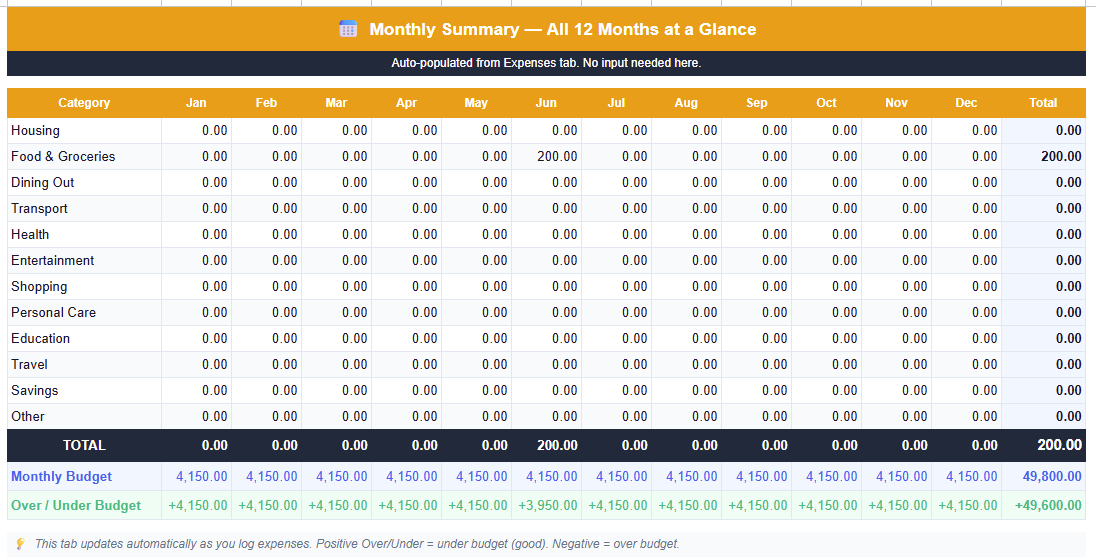
The Over/Under Budget row is your most important number. Positive = under budget, money available to save. Negative = overspent. The pattern across all 12 months tells you far more than any single month ever could.
Tips for using this expense tracker Google Sheets template accurately
Log weekly — not daily or monthly
Daily feels like homework. Monthly means reconstructing from memory. Weekly is the sweet spot — recent enough to remember accurately, infrequent enough to sustain. 10 minutes every Sunday keeps it clean without becoming a burden.
Use specific category names that match your actual life
Rename “Other” to something real. If you spend heavily on pets, rename a category “Pet Expenses”. Vague categories produce vague insights. The more specific your categories, the more actionable the Dashboard becomes every month.
Set budgets from real history — not aspirations
Pull 3 months of bank statements before setting budget limits. The biggest mistake people make is setting aspirational budgets they immediately blow, then giving up. Start realistic. Reduce gradually once the tracking habit sticks.
Don’t skip months — partial data is still valuable
If you miss two weeks of logging, don’t abandon the month. Log what you can remember, flag uncertain entries with “approx” in the description. An 80% accurate expense log is infinitely more useful than no log at all. The Monthly Summary improves with every month you contribute.
Pair with the Budget Tracker for the complete picture
This expense tracker Google Sheets template covers spending. The free Budget Tracker Google Sheets template adds income planning, savings goals and debt tracking — giving you the full financial picture. Most people start with this template to build the logging habit, then graduate to the Budget Tracker once they’re comfortable.
6-week walkthrough: building the expense tracker Google Sheets template habit
Most people abandon a new expense tracker Google Sheets template in the first two weeks — not because the spreadsheet fails, but because the habit never gets a fair chance to form. Here’s a realistic six-week path.
Weeks 1–2: Just log, don’t judge
Your only goal is to open this expense tracker Google Sheets template every Sunday and enter last week’s expenses. Don’t look at the Dashboard yet. Don’t compare against budgets. You’re building the mechanical habit first — judgment comes later.
Week 3: First honest look at the Dashboard
By now you have three weeks of real data. Type your month number into the Dashboard and look — really look — at which categories are already over budget. Expect at least one surprise category.
Week 4: Adjust one category, not five
Resist the urge to overhaul your entire budget. Pick the single worst-performing category and make one specific change — a lower dining-out cap, a cancelled subscription. One change sticks better than five.
Week 5: Check the Monthly Summary for the first time
You now have enough rows in the Expenses tab for the Monthly Summary to show a meaningful trend, not just a single snapshot. Look at whether your Week 4 adjustment actually moved the needle.
Week 6: Decide if you need more than tracking
If logging feels automatic by week six, it has done its job — you understand where your money goes. If sticking to the weekly habit is still your biggest hurdle, pairing it with the free Habit Tracker Google Sheets template gives you a dedicated streak system that runs alongside your spending log.
Common expense tracker Google Sheets template mistakes to avoid
Every expense tracker Google Sheets template lives or dies on consistency. These are the five mistakes that quietly kill most people’s tracking habit before month two.
Mistake 1: Trying to log every purchase the same day
Daily logging sounds disciplined, but it turns tracking into a chore you’ll resent within a week. Batch logging once a week is more sustainable and just as accurate.
Mistake 2: Setting aspirational, not realistic, budgets
If every category shows over budget every month, the budgets — not your spending — are the problem. Reset them to match 2–3 months of real history before judging yourself.
Mistake 3: Ignoring debt eating into your budget
If the same 2–3 categories run red every single month, the real issue often isn’t spending discipline — it’s debt payments quietly consuming room you thought you had. The free Debt Payoff Calculator Google Sheets template shows your exact payoff date so you know how much budget room you’ll actually free up, and when.
Mistake 4: Mixing personal and business spending
Freelancers who use this template for both personal and client-related costs run into a different problem — deductible expenses get buried inside personal categories at tax time. The Freelance Expense Tracker Google Sheets template keeps the two separated from the first entry.
Mistake 5: Quitting after one bad month
One over-budget month isn’t failure — it’s data. The Monthly Summary only becomes useful after 3–4 months of entries. Quitting in month one throws away the exact information you need to actually fix the pattern.
Expense Tracker Google Sheets template Pro — what’s upgraded
The free expense tracker Google Sheets template covers everything most people need. The Pro version adds four power tabs for people who want deeper analysis and automation:
Bank Import + AI
Paste a CSV export from your bank — AI auto-categorises every transaction using your own category names via the Gemini API.
Income Log
Track income alongside expenses. See your true net position — not just what you spent but what you had to spend it from.
Deductible Summary
Assign tax-deductibility percentages per category. The summary calculates your deductible total automatically — ready for tax season.
Reimbursables Tracker
Flag any expense as reimbursable. Track which ones are pending, approved or paid — so nothing falls through the cracks.
AI Reports
Generate a plain-English spending analysis with one click. The AI identifies your biggest problem categories and suggests actionable cuts.
Expense Tracker Google Sheets Template Pro — All 10 Tabs
Everything in the free expense tracker Google Sheets template, plus Bank Import + AI, Income Log, Deductible Summary, Reimbursables and AI Reports.
✓ Income Log — see your true net position
✓ Tax deductible summary — ready for tax season
✓ Reimbursables tracker — nothing falls through
✓ AI spending reports — one-click analysis
15% off for Tools Without Code readers — effective price $8.42. The discount is automatically applied when you click the button below — no code to enter. Exclusive to visitors from this site.
Get Expense Tracker Pro — $9.90 →
| Feature | Free | Pro |
|---|---|---|
| Expenses tab + category dropdown | ✅ | ✅ |
| Month-selector Dashboard | ✅ | ✅ |
| 12-month Monthly Summary | ✅ | ✅ |
| 12 customisable categories | ✅ | ✅ 20 categories |
| Bank CSV import + AI categorisation | ❌ | ✅ |
| Income Log | ❌ | ✅ |
| Tax Deductible Summary | ❌ | ✅ |
| Reimbursables Tracker | ❌ | ✅ |
| AI Spending Reports | ❌ | ✅ |
| Price | Free | $9.90 |
Expense tracker Google Sheets template vs budgeting apps — which is right for you?
| Feature | Expense tracker Google Sheets template (free) | YNAB / Monarch Money | Basic notes app |
|---|---|---|---|
| Cost | Free forever | $99–$109/year | Free |
| Month-by-month dashboard | ✅ | ✅ | ❌ |
| 12-month overview | ✅ | ✅ | ❌ |
| Budget vs actual tracking | ✅ | ✅ | ❌ |
| Bank connection required | No | Yes | No |
| Data stays private | ✅ | ❌ | ✅ |
| Works offline | ✅ | ❌ | ✅ |
| Customisable categories | ✅ | Limited | Manual only |
| Learning curve | 5 minutes | 1–2 weeks | None |
The honest verdict: YNAB and Monarch Money are more capable — automatic bank sync, real-time alerts, debt planning. But they cost $100/year, require a bank connection and take weeks to learn. This expense tracker Google Sheets template does 80% of what most people actually need, costs nothing, and takes 5 minutes to set up. If you want to compare the major options first, FinCompareLab’s guide to free budgeting apps covers the leading tools with hands-on testing.
📥 Get the Expense Tracker Google Sheets Template
Make a copy to your Google Drive in one click. All formulas pre-built, no setup needed.
✓ Month selector Dashboard
✓ 12-month summary view
✓ No coding needed
Frequently Asked Questions — expense tracker Google Sheets template
What is the best free expense tracker Google Sheets template?
The best free expense tracker Google Sheets template combines a category dropdown, monthly budget comparison, an interactive Dashboard and a 12-month summary — all without requiring a subscription or bank connection. This template provides all four in a single file you can copy in one click.
How do I track expenses using an expense tracker Google Sheets template?
Make a copy of this expense tracker Google Sheets template, open the Setup tab and customise your 12 expense categories and monthly budgets, then log each expense on the Expenses tab with a date, category, description and amount. The Dashboard and Monthly Summary update automatically with every entry you add.
How is an expense tracker Google Sheets template different from a budget tracker?
An expense tracker Google Sheets template records what you’ve already spent and shows patterns over time. A budget tracker also plans what you intend to spend before the month starts — and tracks income, savings goals and debt alongside expenses. Start with this template to build the logging habit, then move to the free Budget Tracker Google Sheets template when you’re ready for the full system.
How do I change the month on the Dashboard?
Type any number from 1 to 12 in cell C4 on the Dashboard tab of the expense tracker Google Sheets template. 1 = January, 6 = June, 12 = December. All KPI cards and the full category breakdown rebuild instantly for that month.
Can I add more expense categories to this expense tracker Google Sheets template?
The free expense tracker Google Sheets template supports 12 customisable categories — enough for most spending patterns. To change them, go to Setup and rename any category in column B. The rename flows through to the dropdown, Dashboard and Monthly Summary automatically. No formulas to touch.
Does this expense tracker Google Sheets template work in Excel?
Yes — the expense tracker Google Sheets template uses standard functions compatible with Excel 2019 and later. Download the .xlsx file and open it directly in Excel. Google Sheets is recommended for the best experience since that’s where the template was built and tested.
How many expenses can I log in this expense tracker Google Sheets template?
The free expense tracker Google Sheets template supports 300 expense rows — enough for several years of monthly logging. Most people log 30–60 expenses per month, so 300 rows covers 5 to 10 years of tracking before you’d need to archive data.
Is my data private in this expense tracker Google Sheets template?
Completely. The expense tracker Google Sheets template lives entirely in your own Google Drive. No data is sent anywhere outside your account. Nobody can see your expenses unless you explicitly share the file — a key advantage over budgeting apps that route your data through third-party servers.
Can I use this expense tracker Google Sheets template alongside the Budget Tracker and Net Worth Tracker?
Absolutely — they’re designed as a suite. This expense tracker Google Sheets template logs your spending. The Budget Tracker Google Sheets template adds income planning and savings goals. The Net Worth Tracker Google Sheets template shows the long-term result. Together they give you a complete picture: daily spending, monthly planning and long-term wealth trajectory.