
Notion Life OS Template: Free, Proven & Built to Last
A Notion Life OS template built on the PARA method for people in the US, UK, and Australia who are tired of running their life across five different apps. Tasks, goals, habits, and notes: one connected dashboard, 100% free on Notion’s free plan.

17 min read
Your tasks live in one app. Your notes sit in another, and your goals are written in a journal you haven’t opened since January. That’s not a discipline problem. It’s an infrastructure problem, and a Notion Life OS template fixes it by pulling every corner of your notion life planning into one connected dashboard instead of five competing ones.
This Notion Life OS template runs on the PARA method, works completely on Notion’s free plan, and takes under 20 minutes to set up. Below you’ll get the free download, a full walkthrough of what’s inside, how it’s actually different from a generic Notion second brain template, and a grounded comparison against the $129 templates dominating this space.
- What Is a Notion Life OS Template?
- The PARA Method Behind This Notion Life OS Template
- Get the Free Notion Life OS Template
- What’s Inside This Notion Life OS Template
- The Daily Ritual: Why This Notion Life OS Template Actually Gets Used
- How to Set Up Your Notion Life OS Template
- Free vs Pro: Which Notion Life OS Template Do You Need?
- Notion Life OS Template vs a Second Brain Template
- Notion Life OS Template vs $129 Alternatives
- 5 Tips to Actually Use Your Notion Life OS Template
- Frequently Asked Questions
What Is a Notion Life OS Template?
A Notion Life OS template is a pre-built Notion system that organizes tasks, projects, goals, habits, and notes on the PARA method, inside one dashboard. You duplicate it, add your own content, and the dashboard becomes the single screen you check every morning instead of switching between four or five separate apps.
“Life OS” stands for Life Operating System, the same way your phone’s OS quietly coordinates everything running in the background, a notion life operating system template coordinates your tasks, goals, habits, and notes from a single dashboard.
The concept sits alongside Tiago Forte’s Building a Second Brain framework, which argues your biological brain is bad at storing information but excellent at processing it. This system becomes your external storage, so your actual brain stays free to think instead of remembering.
Rather than spending days wiring up databases from scratch, you duplicate a working system and start using it the same day.
The PARA Method Behind This Notion Life OS Template
Every database here follows PARA, a framework developed by Tiago Forte. PARA stands for four categories that cover everything in your life:
| Letter | Category | What Goes Here | Example |
|---|---|---|---|
| P | Projects | Active work with a deadline | Launch a website, write a report |
| A | Areas | Ongoing responsibilities, no end date | Health, finances, career |
| R | Resources | Reference material for later | Articles, books, research |
| A | Archive | Completed or inactive items | Old projects, past notes |
PARA organizes by actionability, not topic. Most people sort notes by subject (work, personal, finance), which forces constant context-switching. Building a notion life os template on PARA keeps active things visible and moves finished things out of sight, automatically.
You don’t need to categorize everything perfectly on day one. Items move between categories as your life changes. A resource becomes a project the moment you decide to act on it, and a project becomes an archive the moment it’s done.
Get the Free Notion Life OS Template
The free version of this Notion Life OS template includes the core PARA structure, a daily dashboard, a task database, and a notes inbox. No sign-up, no email required. Just duplicate and start. You’ll find the download link further down this page, alongside the full free vs Pro comparison.
What’s Inside This Notion Life OS Template
Here’s a full tour of every piece inside the Pro version of this Notion Life OS template.
Home Dashboard
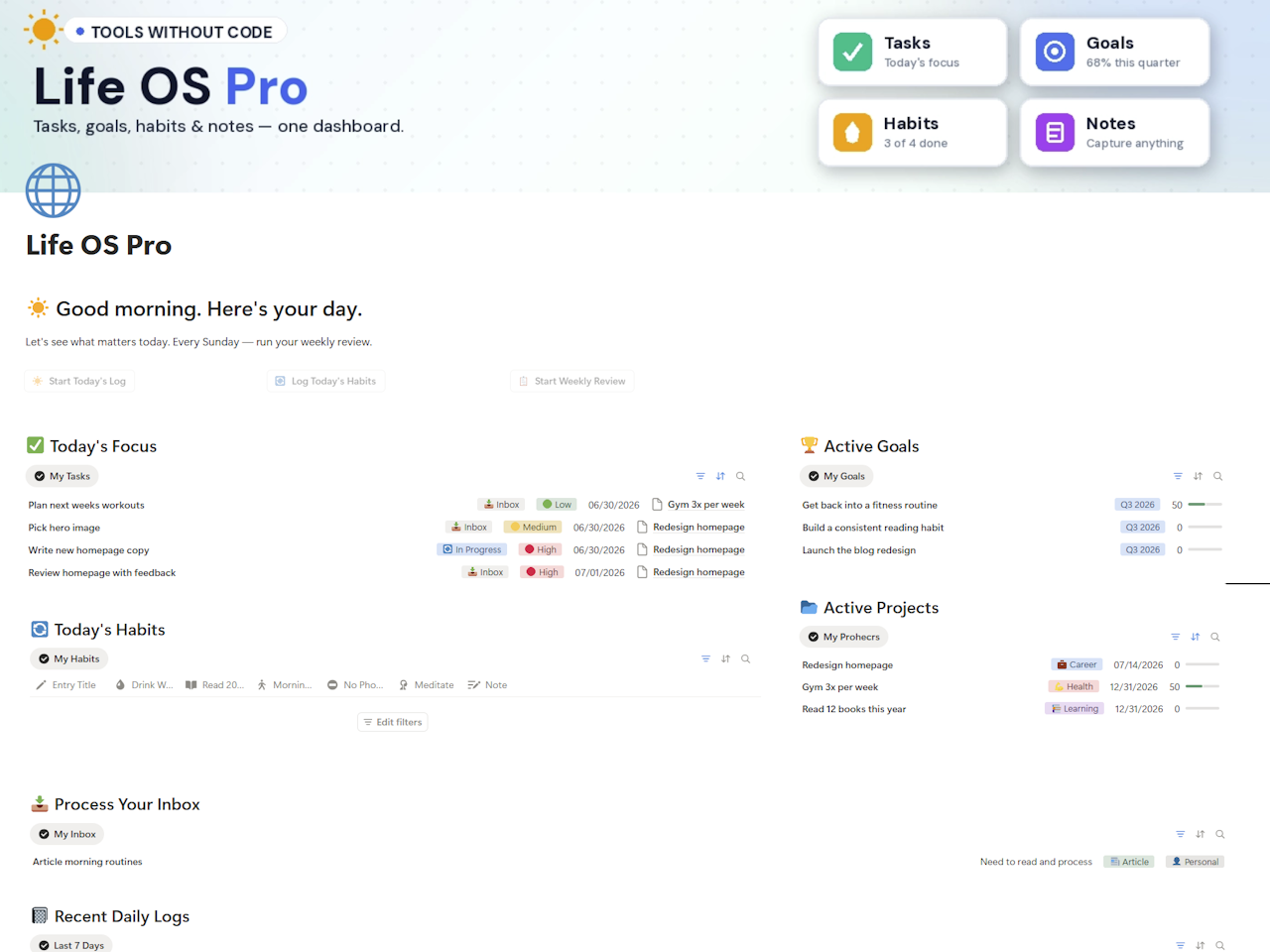
The Home Dashboard is where every session starts and ends. It surfaces today’s tasks, active goals with live progress percentages, today’s habit checklist, active projects, and your unprocessed inbox, all on one screen, no digging required.
Tasks Database
Every task links to a Project, a Goal, and an Area of life. The Today’s Focus view filters to what’s due today or overdue and not yet done. Nothing disappears just because a deadline passed.
Projects Database
Projects roll up their linked tasks automatically. A Progress percentage formula calculates how much of each project is actually done, so you’re not guessing where things stand.
Goals Database
Set quarterly goals, link them to active projects, and watch the Progress percentage update as tasks get marked done. This is the layer most to-do apps skip entirely, the connection between what you do today and why it matters.
A financial goal works the same way. Say the Area is “Finance” and the Goal is paying down a credit card by December. Link that goal to a project, then track the actual balance somewhere built for it, like a dedicated debt payoff calculator, and pull the milestone dates back into your Life OS Goals database as tasks. If the goal is longer-term wealth building instead of debt payoff, a net worth tracker does the same job for assets and liabilities. Neither needs to live inside Notion. They just need a task in this system reminding you to check them.
Notes & Resources
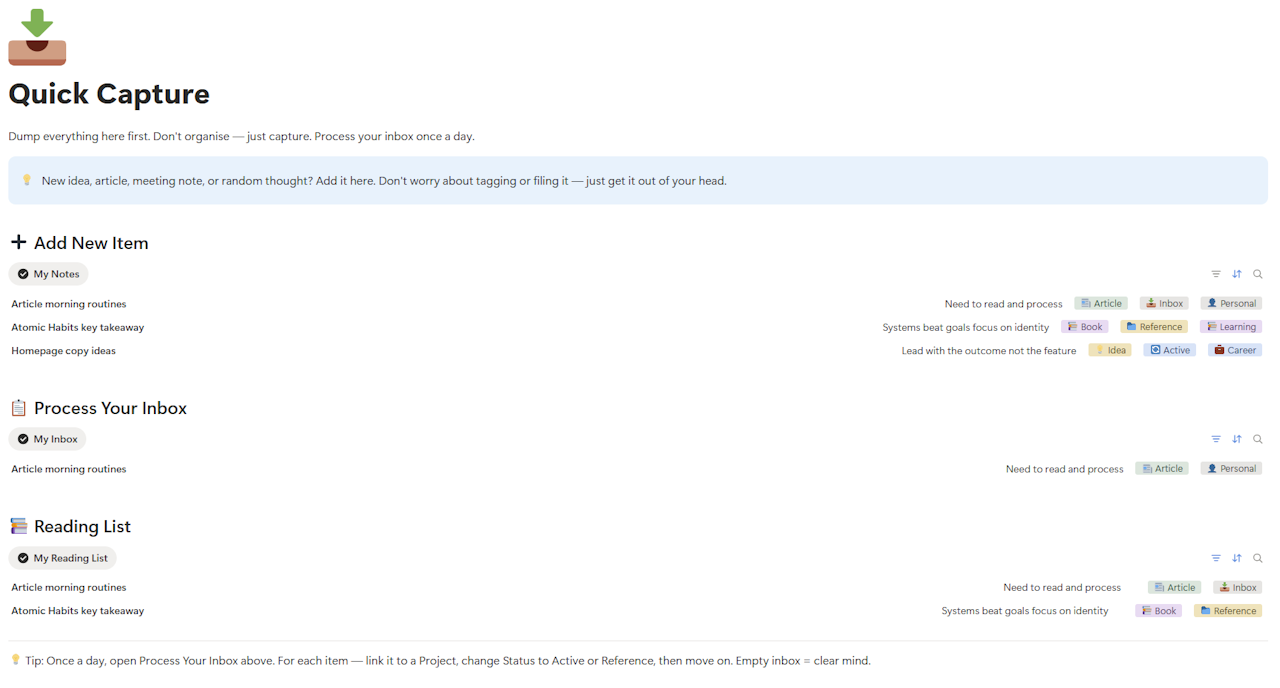
A Quick Capture inbox catches ideas, meeting notes, articles, and half-formed thoughts the moment they happen. Nothing needs to be filed correctly at capture time. You process the inbox once a day and sort from there.
Habit Log
Up to five habits tracked in a single row per day. Mark each as Yes, No, or N/A. The N/A option matters more than it sounds: a weekday-only habit doesn’t get punished for a rest day on Saturday. If you want deeper streak charts than a simple checklist gives you, pairing this with a dedicated habit tracker template adds the analytics layer this Life OS intentionally keeps light.
Daily Log: Guided Journal
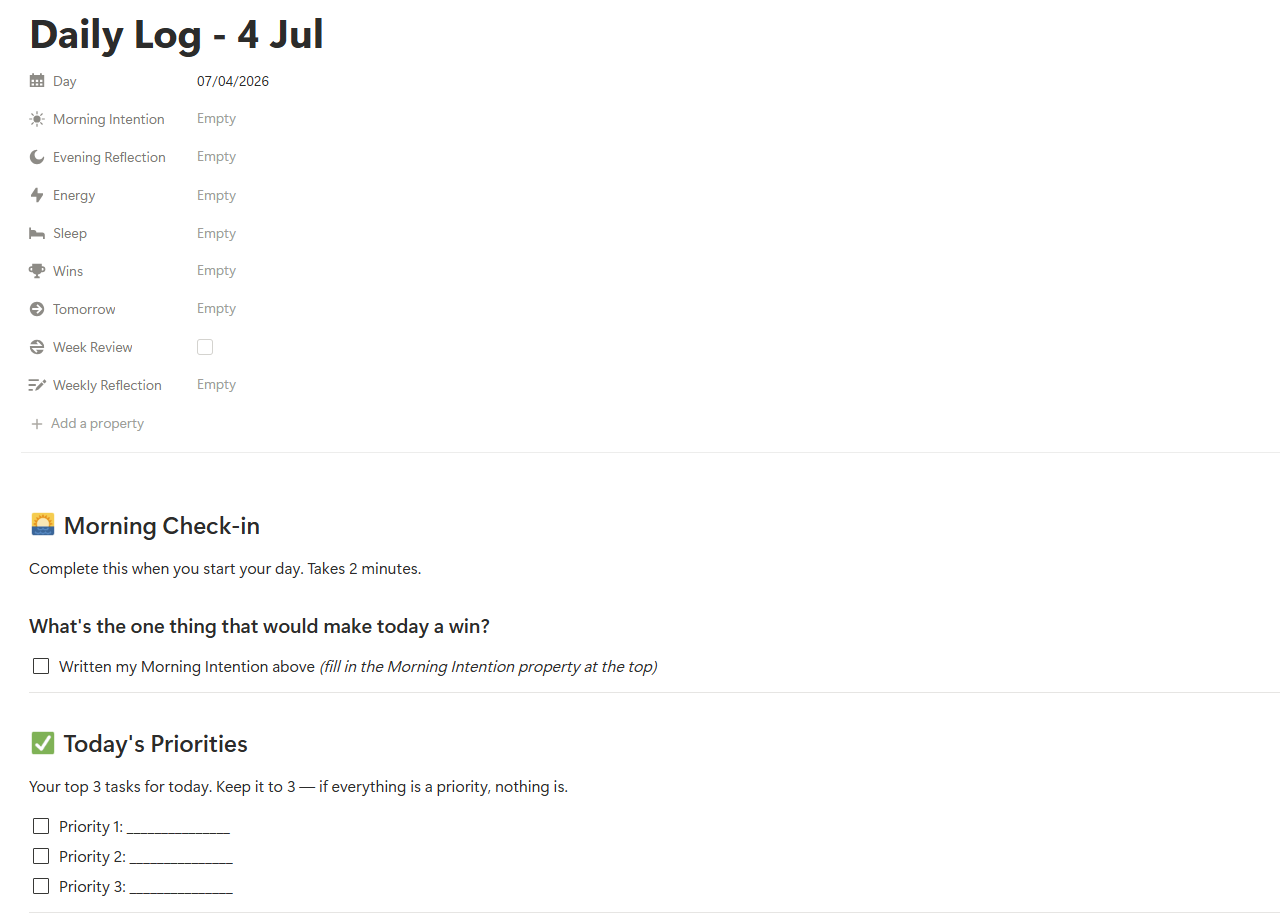
This is the feature most competing templates skip. A single button creates a new dated entry with a full guided structure built in: a morning check-in prompt, a space for today’s top three priorities, an evening reflection, and a free-notes section. It takes under two minutes each way.
Weekly Review
A second button generates a full notion weekly review template with six prompted sections: what you completed, what you didn’t finish and why, whether your goals are on track, how your habits held up, whether your inbox is clear, and your three priorities for next week. This is the single habit that keeps the rest of the system honest, and it’s the section most people underrate on day one.
Get Back on Track
Every productivity system eventually gets abandoned for a week. This one includes a dedicated recovery page, a six-step, judgment-free checklist that gets you re-oriented in about ten minutes. Among the Notion Life OS templates we reviewed for this comparison, none built in anything like a structured restart page. Most just leave you to re-open a stale dashboard and figure it out.
The Daily Ritual: Why This Notion Life OS Template Actually Gets Used
Most Notion templates die within a month. The pattern is consistent across reviews and forums: people spend hours setting up a beautiful system, then stop opening it because there’s no daily trigger pulling them back in.
This template solves that with a two-minute morning and evening ritual, built directly into the dashboard:
| Time | Action | Where |
|---|---|---|
| Morning | Click Start Today’s Log | Dashboard |
| Morning | Click Log Today’s Habits | Dashboard |
| Morning | Check Today’s Focus | Dashboard |
| During day | Capture ideas instantly | Quick Capture |
| Evening | Mark tasks done | Today’s Focus |
| Evening | Fill in evening reflection | Daily Log entry |
| Weekly | Run the Weekly Review | Dashboard |
Notion’s free plan can’t send email or push notifications for due tasks. That’s a real platform limitation, not something a template can work around. The fix is simple: connect the free Notion Calendar app, which syncs with the Tasks database and does send mobile reminders.
How to Set Up Your Notion Life OS Template
Duplicate the template
Click the free download link above, then hit Duplicate in the top-right corner of Notion. No paid Notion plan required. It runs fully on the free plan.
Connect Notion Calendar
Go to notion.so/calendar, sign in, and add your Tasks database. This is what gives you real reminders on your phone, since Notion itself can’t send them natively.
Define your Areas of life
Customize the default Area options (Health, Career, Finance, Learning, Creative, Relationships, Personal) to match your actual life. Keep it to 5–7 areas maximum.
Add this week’s tasks only
Don’t migrate everything you own into it on day one. Add this week’s tasks, link each to a project and goal, and let the rest wait.
Set one goal per Area
Add a quarterly goal for each Area of life, link it to an active project, and fill in one sentence explaining why it matters. This connects your daily tasks to something bigger.
Name your habits and start today
Rename the five habit columns to whatever you’re tracking, then click Log Today’s Habits and Start Today’s Log right now, before you close the tab.
Free vs Pro: Which Notion Life OS Template Do You Need?
The free version covers Tasks, Notes, and a 3-habit checklist, genuinely enough for anyone just getting started. The Pro version adds Projects, Goals, a guided Daily Log, a full Weekly Review, and the Get Back on Track recovery page.
If your finances live outside Notion already, that’s fine, and honestly recommended. Pair this Notion Life OS template with a dedicated budget tracker template or a full personal finance dashboard template and let your Goals database just point at them. Freelancers juggling business and personal spending can add an freelance expense tracker, or a simpler expense tracker template for everyday spending. If you’d rather compare full budgeting apps before picking a system, FinCompareLab’s roundup of the best personal finance software is a reasonable starting point.
Notion Life OS Pro: The Complete System
Everything in the free Notion Life OS template, plus the features that turn a working system into one you actually keep using. Built for freelancers, students, and professionals who want Notion to run their life, not just store their to-do list.
✓ Projects database with automatic progress rollups
✓ Goals database linked to projects and tasks
✓ Guided Daily Log — morning + evening, one click
✓ One-click Weekly Review with 6 prompted sections
✓ Get Back on Track recovery page
✓ Full 10-step Setup Guide built into the template
✓ Works on Notion’s free plan — no paid upgrade needed
🎉 One-time purchase — yours forever. 15% off — effective price $8.42. Auto-applies at checkout.
| Feature | Free | Pro |
|---|---|---|
| PARA-based Tasks & Notes | ✓ | ✓ |
| Home Dashboard | Basic | Full |
| Habit Checklist | 3 habits | 5 habits |
| Projects Database | — | ✓ |
| Goals Database | — | ✓ |
| Guided Daily Log | — | ✓ |
| Weekly Review | — | ✓ |
| Get Back on Track Page | — | ✓ |
| Full Setup Guide | 3 steps | 10 steps |
| Works on Notion Free Plan | ✓ | ✓ |
Want the free version first? No pressure. The free version is a complete, working system. Try it for a week and upgrade if you want more.
✓ Works on Notion’s free plan
✓ PARA-based Tasks and Notes databases included
✓ Duplicate in one click
Notion Life OS Template vs a Second Brain Template
A lot of buyers land on this page after searching for a notion second brain template and aren’t sure if that’s the same thing as a Life OS. It isn’t, not exactly, and the difference actually matters for which one you should get.
A second brain notion template is built around Tiago Forte’s original PARA concept: capture, organize, and retrieve information. It’s a knowledge-management system first. A notion life os template borrows PARA’s structure but adds an operating layer on top: task management, goal tracking tied to those tasks, habit logging, and a daily ritual that pulls you back to the dashboard every morning and evening.
Put simply: if your main problem is scattered notes and research, a plain second brain template alone might be enough. If your problem is scattered notes plus scattered tasks plus goals that never connect to your actual day, you need the fuller Life OS layer this template adds on top of PARA.
Notion Life OS Template vs $129 Alternatives
Most paid Notion Life OS templates on the market sit between $49 and $149. Here’s how this one compares on the features people actually use, plus a couple of criteria most comparison posts skip entirely.
| Template | Price | Databases | Daily Ritual Button | Recovery Page | Free Notion Plan |
|---|---|---|---|---|---|
| This Notion Life OS Template | $9.90 | 6 | ✓ Log + Review buttons | ✓ Get Back on Track | ✓ Confirmed |
| Thomas Frank Ultimate Brain | $129 | 6–8 | ✗ | ✗ | Varies by plan tier |
| BetterCreating Life OS | $149 | 7–9 | ✗ | ✗ | Varies by plan tier |
| NotionEverything Second Brain | $129 | 6–8 | ✗ | ✗ | Varies by plan tier |
| Gridfiti Life OS | $49–69 | 25+ | ✗ | ✗ | Often needs an upgrade at that database count |
This template is honestly not the most feature-rich option on this list. It skips subtasks, recurring tasks, and a built-in finance tracker on purpose. What it does instead is stay under 6 databases while adding a daily ritual layer and a recovery page nothing else on this list has, at least among the pages we reviewed while building this comparison.
If you’re already tracking your finances separately, pairing this Notion Life OS template with a dedicated budget tracker template covers both your productivity system and your money without duplicating effort. Freelancers can layer in a Notion freelancer CRM template to keep client relationships out of the Notes database and somewhere purpose-built instead.
5 Tips to Actually Use Your Notion Life OS Template
Most systems like this one get abandoned within a month. Here’s what separates the ones people actually keep using.
Open the Dashboard first, always
Never navigate straight into a database. Every session should start on the Home Dashboard. That’s the whole point of having one.
Keep Areas to 7 or fewer
Every Area you add increases upkeep. Six well-maintained Areas beat twelve you never review.
Run the Weekly Review every Sunday
This is the single habit that keeps the whole system accurate. Skip it for a month and the Dashboard starts lying to you about what’s actually active.
Capture first, organize later
Every idea goes into Quick Capture first, no exceptions. Process the inbox once a day instead of trying to file things perfectly the moment they arrive. If you’re tracking actual contacts and relationships rather than just notes, a dedicated personal CRM template keeps that layer separate from general capture.
Use Get Back on Track without guilt
If you disappear for two weeks, there’s a page built exactly for that moment. No catching up, no shame, just six steps back to normal.
Pairing this system with a dedicated habit tracker template works well if you want deeper streak analytics than a simple checklist provides. Job hunters can add a standalone job search tracker for application-stage tracking this template intentionally doesn’t try to replace.
Students
One Area per subject. Assignments become Projects with due dates. The Dashboard shows what’s due this week without opening a single database.
Freelancers
One Area per client. Deliverables become Projects, and Quick Capture catches feedback mid-call. A freelancer CRM template handles the client relationship side this Life OS deliberately leaves out.
Knowledge Workers
Notes becomes your research hub. Tag by Area, link to active Projects, and let Archive hold everything you’re not actively using right now.
Side Hustlers
Separate Areas for day job and side project. Goals track income milestones. Weekly Review keeps you honest about where your hours are actually going.
Frequently Asked Questions
What is a Notion Life OS template and how does it work?
A Notion Life OS template is a pre-built productivity system inside Notion that organizes tasks, projects, goals, notes, and habits using the PARA method. You duplicate it into your workspace, add your own content, and use the dashboard as your daily command center.
Is this Notion Life OS template really free?
Yes. The free version includes the PARA-based Tasks and Notes databases, a basic dashboard, and a 3-habit checklist. The Pro version adds Projects, Goals, a guided Daily Log, Weekly Review, and the Get Back on Track page for a one-time fee.
Do I need a paid Notion plan to use this template?
No. Both the free and Pro versions of this Notion Life OS template run fully on Notion’s free plan. Notion Calendar, used for reminders, is also free and requires no upgrade to either product.
How long does setup take for this Notion Life OS template?
Under 20 minutes. Duplicate the template, connect Notion Calendar, define your Areas, add this week’s tasks, set one goal per Area, and name your habits, then start your first Daily Log immediately.
What is the PARA method used in this Notion Life OS template?
PARA stands for Projects, Areas, Resources, and Archives, developed by Tiago Forte. It organizes information by actionability instead of topic. Active work stays visible, and completed work moves out of the way automatically.
Can this Notion Life OS template send reminders?
Not directly. Notion’s free plan can’t send email or push notifications. Connecting the free Notion Calendar app to the Tasks database solves this by syncing due dates to mobile reminders outside of Notion itself.
Does this Notion Life OS template include a weekly review system?
Yes. The Pro version has a one-click notion weekly review template built into the dashboard, generating six prompted sections covering completed work, unfinished tasks, goal progress, habit consistency, inbox status, and next week’s priorities.
How is a Notion Life OS template different from a notion life planner?
A notion life planner is usually calendar-first: daily, weekly, and monthly planning pages built around dates. A Notion Life OS template is system-first: tasks, goals, habits, and notes all connected to each other, with dates as just one property among several.
Is a Notion Life OS template better than separate apps?
For most people, yes. Separate apps lose the connections between what you’re doing and why. This Notion Life OS template links every task to a project, every project to a goal, so daily work stays visibly tied to something bigger.
- One place to check: A single dashboard beats three competing apps for your attention every morning.
- Connected context: Tasks link to projects, projects link to goals. You always know why something matters.
- Nothing silently disappears: Overdue tasks stay visible until you act on them, not buried under today’s date.
What is the difference between a Notion Life OS template and a Second Brain template?
A second brain notion template focuses on capturing and retrieving knowledge. A Notion Life OS template adds task management, goal tracking, habit logging, and a daily ritual layer on top of that same PARA foundation. Choose Life OS if you also want your day-to-day actions connected to the system, not just your notes.
What if I fall behind on my Notion Life OS template?
Use the Get Back on Track page, included in the Pro version. It’s a six-step, judgment-free checklist: process your inbox, update task statuses, review projects and goals, reset your habits, and set three priorities for the week ahead. No catching up required.
Alex builds free and Pro templates for Google Sheets and Notion, no code required. Every template on Tools Without Code is tested against real daily use before it ships.