
Google Sheets Invoice Tracker: 5 Secrets to Get Paid
This google sheets invoice tracker logs every invoice you send, matches every payment the moment it lands, and tells you exactly who owes you money — without paying for invoicing software. Five tabs, 499 formulas, zero errors. Free to download, no email required, built for freelancers in the US, UK and Australia.

11 min read
✨ What’s inside this google sheets invoice tracker
- Setup tab — business name, currency, payment terms, tax rate and invoice prefix — configure once, never revisit
- Invoices tab — log every invoice with auto-numbering, auto due date, tax, balance due and auto-status
- Receipts tab — record every payment received — invoice status updates to Paid automatically
- Dashboard tab — live KPIs: total invoiced, received, outstanding, overdue, partial and collection rate
- Clients tab — fully automatic per-client revenue summary, zero manual entry
- 5 auto-statuses — Draft, Sent, Partial, Overdue, Paid — all calculated, never typed manually
- Partial payment support — split payments tracked across multiple receipts, balance always accurate
- Works in Google Sheets and Excel 365 — 499 formulas, zero errors
📋 Table of Contents
- What is a Google Sheets invoice tracker?
- Who this Google Sheets invoice tracker is built for
- Inside this Google Sheets invoice tracker — 5 tabs
- Google Sheets invoice tracker vs. a single invoice template
- Step 1 — Setup tab
- Step 2 — Invoices tab
- Step 3 — Receipts tab
- Step 4 — Dashboard tab
- Step 5 — Clients tab
- How the auto-status engine works
- Does it work as an invoice tracker Excel file?
- 5 secrets to get paid faster
- Invoice tracker template: free vs paid software
- People also ask
- FAQ
What Is a Google Sheets Invoice Tracker?
A google sheets invoice tracker is a free spreadsheet system that logs every invoice you send, records payments as they arrive, and calculates what’s paid, outstanding and overdue automatically. It lives entirely in your own Google Drive, with no monthly software fee and no data leaving your account.
Most freelancers confuse this with a basic invoice template — a document you fill in once and email. A google sheets invoice tracker is different: it keeps a running log of every invoice across every client, connected to a receipts log, so a single entry updates every status automatically.
The payoff is a live dashboard showing exactly where your money sits, at any moment, without opening old email threads or doing mental math. Whether you bill in USD, GBP or AUD, this google sheets invoice tracker adapts to any currency from a single Setup cell.
The counter-intuitive truth about late payments: most freelancers who struggle with overdue invoices aren’t disorganised — they just don’t have a system that surfaces the problem automatically. The moment overdue invoices highlight themselves in red, chasing stops feeling awkward and starts feeling obvious. Visibility is the fix, not discipline.
Who This Google Sheets Invoice Tracker Is Built For
This google sheets invoice tracker is built for anyone billing more than one client at a time and tired of guessing who’s paid. It replaces a mental tally, a stack of email confirmations, or a static list that never gets updated once a payment lands.
- Freelancers — designers, writers, developers and consultants billing multiple clients per month
- Solopreneurs — one-person businesses who need clean invoice tracking without accounting-software overhead
- Independent contractors — project-based workers who invoice irregularly and need to know what’s actually been paid
- Side hustlers — people earning freelance income alongside a day job who want billing organised without a subscription
It’s not the right fit if you need to send formatted PDF invoices directly to clients — tools like FreshBooks handle that better. If your goal is to track invoicing, flag what’s overdue, and see per-client revenue, this google sheets invoice tracker does it at zero cost.
Already tracking expenses too? Pair this with the free Freelance Expense Tracker — it captures every deductible business cost alongside your invoice income, so tax time is painless.
Invoicing is only half the client relationship. Pair this tracker with the free Notion Freelancer CRM template to log every client conversation, deadline and follow-up right alongside what they owe you — so a slow payer never slips through because you forgot to check in.
Inside This Google Sheets Invoice Tracker — 5 Tabs Explained
This google sheets invoice tracker splits work across five tabs so each one has exactly one job. You’ll only ever type in the blue cells — everything else calculates itself the moment you enter an invoice or a payment.
📊 5 tabs — each with a clear job
Invoice Tracker Google Sheets vs. a Single Invoice Template
Search “invoice template” and Google’s own gallery hands you a single-invoice document — fill it in, download it, email it. That’s a different tool solving a different problem than an invoice tracker google sheets file is built for, and mixing the two up is the most common mistake freelancers make when they start invoicing seriously.
A single invoice template has no memory. Send twelve invoices this month and you’ll have twelve separate files, no running total, and no way to see who still owes you money without opening each one. A google sheets invoice tracker keeps every invoice in one connected log, so the moment a payment lands, its status — and your dashboard — updates itself.
If you only need to send one professional-looking invoice to a single client today, a plain invoice template is faster to fill in. If you’re billing multiple clients on a recurring basis and need to know, at a glance, who’s overdue, this google sheets invoice tracker is the tool built for that job.
Step 1 — Set Up Your Google Sheets Invoice Tracker
Open the Setup tab first. Configure this google sheets invoice tracker once and every other tab pulls from it automatically — you never need to return.
Enter your business details
Type your freelancer or business name in C12 and your currency symbol in C13 — $, £, €, or whatever you bill in. Your name appears on the Dashboard header. The currency symbol propagates across every money cell automatically.
Set your default payment terms
Enter payment terms in C14 — Net 7, Net 14, Net 30 or Net 60. Every invoice’s due date calculates from the invoice date plus this number. No manual due date entry ever, and changing it updates every blank invoice row instantly.
Set your tax rate
Enter your rate in C15 as a decimal — 0.10 for 10%, 0.20 for 20%. If you don’t charge tax, leave it at 0. The tax column on every invoice calculates from this one cell.
Set your invoice and receipt prefixes
C16 sets the invoice prefix (default: INV-) and C17 sets the receipt prefix (default: REC-). Customise to match your own numbering system — 2026- for year-based numbering, or your initials.
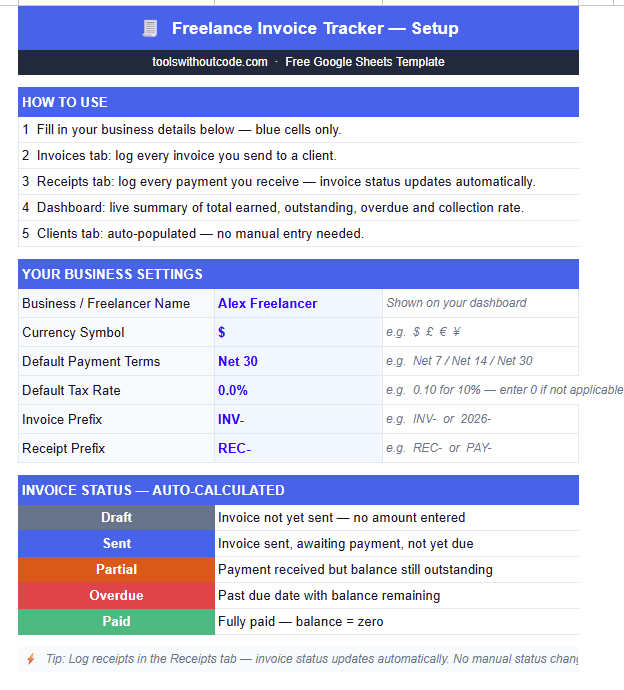
Only ever type in blue cells. All white and grey cells are formula-driven. The Setup tab also includes a colour-coded status legend — Draft, Sent, Partial, Overdue, Paid — so you always know what each status means at a glance.
Step 2 — Log Invoices in Your Google Sheets Invoice Tracker
The Invoices tab is the core of this google sheets invoice tracker. Every invoice you send gets a row here. The free version supports up to 30 invoices — enough for most freelancers billing 2–5 active clients at a time.
Type the client name and description
Enter the client name in column C. The invoice number in column B generates automatically — INV-001, INV-002 — using the prefix from Setup. Add a description in column D for your own tax records.
Enter the invoice date and amount
Type the invoice date in column E and the pre-tax amount in column G. Due date, tax, total, amount received and balance due all populate from formulas — you only ever touch 4 blue columns.
Watch the status set itself
A new invoice with no payment and a future due date shows Sent. The moment the due date passes with no payment, it flips to Overdue automatically, every time you open the spreadsheet.
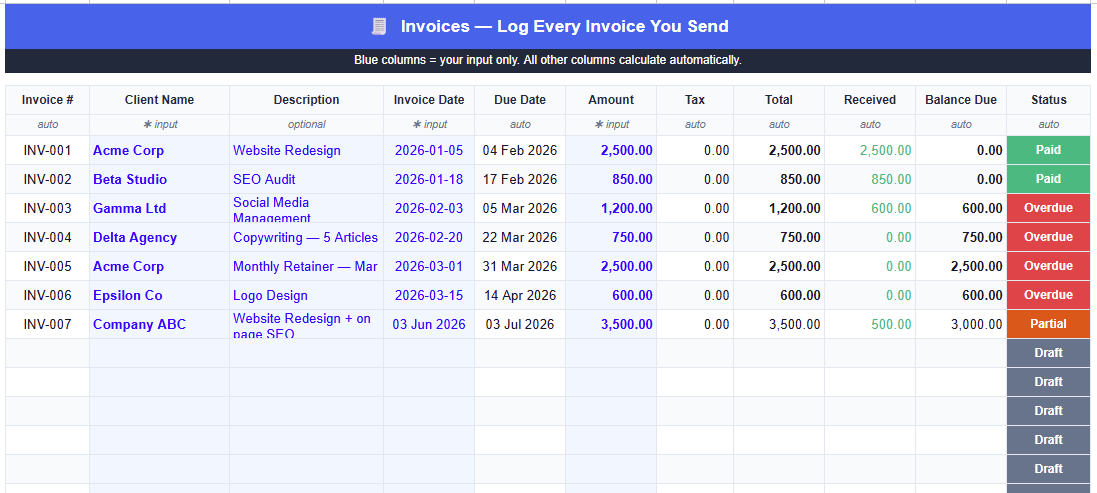
Don’t type in the Status column. It’s a formula — overwriting it breaks the auto-calculation. If you accidentally do, press Ctrl+Z immediately to undo.
Step 3 — Record Payments in Your Google Sheets Invoice Tracker
When a client pays, log it in the Receipts tab. This single action is what makes this google sheets invoice tracker genuinely useful — no software login, no reconciliation workflow, one row, done.
Enter the invoice number
Type the invoice number in column C — e.g. INV-003. The client name in column D fills automatically via a lookup from the Invoices tab, so you never type it twice.
Enter amount, date and payment method
Type the payment amount in column E and date received in column F. Select the payment method from the dropdown in column G — Bank Transfer, PayPal, Credit Card, Cash, Cheque or Other.
Check the invoice status
If the receipt covers the full invoice total, the status has already flipped to Paid and the balance shows zero. A partial payment shows Partial with the remaining balance — no refresh needed.
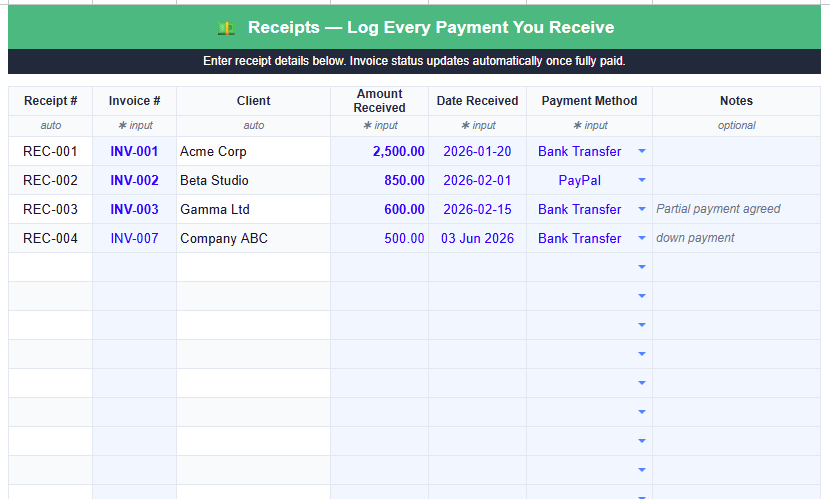
Partial payments work seamlessly. Log $500 against a $1,200 invoice and the status shows Partial, balance due shows $700. Log another $700 against the same invoice number and it flips to Paid — the tracker SUMIFs all receipts per invoice automatically.
Step 4 — The Live Dashboard in Your Google Sheets Invoice Tracker
The Dashboard tab of this google sheets invoice tracker updates every time you log an invoice or receipt — nothing to configure. The top row shows five colour-coded KPI cards: Total Invoiced, Total Received, Outstanding, Overdue and Partial.
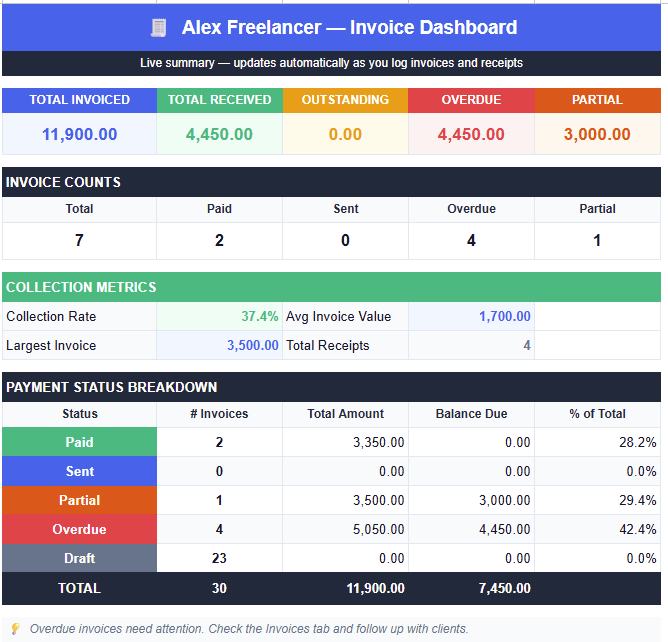
The collection rate is the number to watch. It’s the percentage of your total invoiced amount you’ve actually collected — a rate below 70% means a meaningful chunk of your work isn’t getting paid on time, and that’s the signal that should push you to follow up rather than wait.
Once income actually lands, the next question is where it should go. A tool like the free Debt Payoff Calculator helps freelancers with irregular income decide whether extra cash should clear debt faster or sit as a buffer for slower months. For a longer view, the free Cash Flow Forecast Tracker projects your incoming invoice payments 13 weeks out, so a slow month never catches you off guard.
Make the Overdue KPI your Monday ritual. Open the Dashboard, check the red Overdue number, then go to Invoices and send a quick follow-up to every overdue client. A polite nudge within 3 days of the due date recovers most late payments without friction.
Step 5 — The Automatic Clients Tab in This Google Sheets Invoice Tracker
The Clients tab is the most satisfying part of this google sheets invoice tracker, because you never touch it. It uses Google Sheets’ native UNIQUE and FILTER functions to pull every client from the Invoices tab and calculate Total Invoiced, Total Received, Balance Due, Overdue amount and Invoice Count per client.
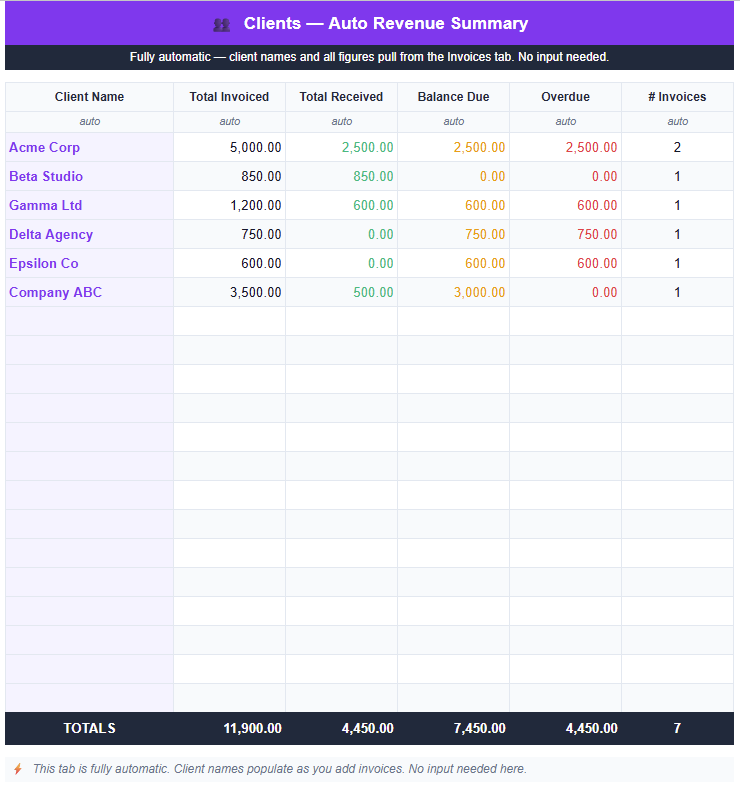
Sort by Overdue to find problem clients. A client with a consistently high overdue balance across multiple invoices is a pattern, not a coincidence. That’s evidence to change payment terms, require a deposit upfront, or have a direct conversation with confidence.
Note for Excel users: the Clients tab uses UNIQUE and FILTER, native Google Sheets functions that also work in Excel 365 and Excel 2021+, but not in Excel 2019 or earlier. You can read more about Google Sheets array functions on Google’s support page.
How the Auto-Status Engine Works Inside This Invoice Tracking Spreadsheet
This invoice tracking spreadsheet calculates every status from three inputs: the invoice total, total receipts logged for that invoice number, and today’s date versus the due date. Nothing is typed manually, which is what separates a real google sheets invoice tracker from a static invoice log you have to update by hand.
| Status | Condition | What it means | Colour |
|---|---|---|---|
| Paid | Amount received ≥ invoice total | Fully settled — nothing owed | 🟢 Green |
| Sent | No payment, due date in future | Invoice sent, waiting on payment | 🔵 Blue |
| Partial | Some payment received, balance remaining, not yet due | Partial payment received, balance outstanding | 🟠 Orange |
| Overdue | Balance remaining AND past due date | Payment is late — follow up needed | 🔴 Red |
| Draft | No amount entered yet | Invoice not yet sent | ⚫ Grey |
The status recalculates every time you open the spreadsheet. A Sent invoice automatically becomes Overdue the morning after its due date, with zero input from you — that’s the whole point of using this invoice tracking spreadsheet over a static log built from a plain invoice template.
Does It Work as an Invoice Tracker Excel File Too?
Yes — this invoice tracker Excel compatibility covers the Invoices, Receipts and Dashboard tabs directly, no conversion needed. Open the file in Excel 2021 or Microsoft 365 and every formula on those three tabs calculates identically to Google Sheets.
The one exception is the Clients tab, which relies on UNIQUE and FILTER — an invoice tracking excel template only supports those functions in Excel 365 and Excel 2021+. If you’re on Excel 2019 or earlier, the Clients tab will show an error, while everything else keeps working normally.
For freelancers doing all their invoice tracking in Excel rather than Google Sheets, this still functions as a complete invoice tracking excel template — just verify your Excel version supports dynamic array functions before relying on the automatic client summary.
Whether you land here searching for a billing tracking spreadsheet, a general spreadsheet for invoice tracking, or simply an invoice tracking sheet you can hand off to a bookkeeper at tax time, this file covers the same ground either way — it’s one connected system, not five separate documents to reconcile.
5 Secrets to Get Paid Faster With a Google Sheets Invoice Tracker
A google sheets invoice tracker only works if you build a habit around it. Here are five changes that directly cut your average days-to-payment — not generic advice, but specific numbers you can apply today.
Send the invoice the same day the work is done
Every day you delay is a day added to your wait. The moment a project wraps, log the invoice — it takes under 60 seconds and clients pay faster while the work is still fresh in their minds.
Switch from Net 30 to Net 14 by default
Net 30 is a corporate norm most freelancers inherited without questioning. Update C14 in Setup to 14 and your average payment cycle shrinks immediately — keep Net 30 only for large enterprise clients who insist on it.
Check the Overdue KPI every Monday morning
Build a 5-minute weekly habit: open the Dashboard, note the Overdue figure, then send a short message to every client on that list. Most late payments happen simply because nobody followed up.
Log receipts the same day payment arrives
Logging immediately flips the invoice to Paid and removes it from your Overdue pile. It keeps this billing tracker template accurate, so you’re never chasing an invoice that’s already been settled.
Use the Clients tab to spot repeat late payers
Sort by the Overdue column each quarter. A client with a consistently high overdue balance is telling you something — require a 50% deposit upfront on their next project, backed by the data this google sheets invoice tracker gives you.
This google sheets invoice tracker tells you what you’ve billed and what’s been paid. The free Freelance Expense Tracker tells you where that money goes once it lands, the free Budget Tracker handles the monthly cash flow view, and the Net Worth Tracker closes the loop on the long-term picture. If you’d rather have every number in one Drive-based hub, the Personal Finance OS ties invoicing, budgeting and net worth together in a single file.
Invoice Tracker Template: Free vs Paid Software
The honest question most freelancers ask: is a free invoice tracker template enough, or do I need to pay for software? Here’s the direct comparison, no hedging.
| Feature | This template (free) | FreshBooks / Wave | Basic invoice templates |
|---|---|---|---|
| Cost | Free forever | $17–$55/month | Free |
| Auto invoice status | ✅ | ✅ | ❌ |
| Receipt / payment logging | ✅ | ✅ | ❌ |
| Partial payment tracking | ✅ | ✅ | ❌ |
| Per-client revenue summary | ✅ | ✅ | ❌ |
| Collection rate metric | ✅ | ✅ | ❌ |
| Bank connection required | No | Optional | No |
| Send invoices to clients | ❌ | ✅ | ✅ |
| Works offline | ✅ | ❌ | ✅ |
| Your data stays private | ✅ | ❌ | ✅ |
The honest verdict: if you need to send formatted invoices as PDFs directly to clients, FreshBooks handles that better. But if you need to track invoicing — who owes what, what’s overdue, which clients pay late — this google sheets invoice tracker does it at zero cost. Most freelancers emailing their invoices don’t need a $55/month package just to know who hasn’t paid.
⚡ Google Sheets Invoice Tracker Pro — $9.90
The free google sheets invoice tracker covers logging and payment tracking. The Pro version adds an Invoice Generator, Aging Report, Late Fee Calculator, Client Performance scoring and AI-powered cash flow reports — everything to run a serious freelance operation from one spreadsheet.
✓ Aging Report — invoices bucketed by 1–30, 31–60, 61–90, 90+ days overdue
✓ Late Fee Calculator — accrued fees auto-calculated at 1.5%/month
✓ Client Performance — payment ratings per client (⭐ Excellent to 🔴 Poor)
✓ Annual Summary — year-by-year income breakdown, month by month
✓ Deposit Tracker — upfront deposits and milestone payments per project
✓ AI Reports — Cash Flow Forecast, Late Payer Alert, Income Trend (Gemini API, free key)
✓ 13 tabs, 6,000+ formulas, zero errors
✓ One-time payment — no subscription
15% off for Tools Without Code readers. The discount applies automatically when you click the button below — no code to enter.
| Feature | Free | Pro — $9.90 |
|---|---|---|
| Invoice logging | ✅ Up to 30 | ✅ Unlimited |
| Receipt logging | ✅ Up to 60 | ✅ Unlimited |
| Auto invoice status | ✅ | ✅ |
| Live dashboard | ✅ | ✅ Enhanced |
| Per-client summary | ✅ Basic | ✅ Full performance scoring |
| Invoice Generator | ❌ | ✅ |
| Aging Report | ❌ | ✅ |
| Late Fee Calculator | ❌ | ✅ |
| Deposit Tracker | ❌ | ✅ |
| Annual Summary | ❌ | ✅ |
| AI Reports | ❌ | ✅ |
📥 Download the Free Google Sheets Invoice Tracker
Make a copy to your Google Drive in one click. Unlike a generic invoice tracker template free download from a random file-sharing site, every formula here is pre-built and tested — no setup needed beyond the Setup tab.
✓ Auto invoice status (Paid, Overdue, Partial)
✓ Receipt logging + partial payment tracking
✓ Live dashboard + automatic client summary
People Also Ask
How do I create an invoice tracker in Google Sheets?
Build one row per invoice with client name, invoice date, amount, due date and a status formula that compares total receipts against the invoice total and today’s date against the due date. This removes manual status updates entirely.
- Column essentials: Invoice number, Client, Date Issued, Due Date, Amount, Tax, Total, Paid, Balance Due, Status
- Status formula: IFS logic comparing total received against invoice total and today’s date against due date
- Receipt log: a separate tab supports multiple payments per invoice for partial payment tracking
- Fastest start: download this free google sheets invoice tracker — all formulas pre-built, no setup required
What is the best free invoice tracker for freelancers?
The best free invoice tracker for freelancers combines invoice logging, receipt recording and auto-status calculation with no subscription and no data leaving your Drive. A google sheets invoice tracker gives freelancers billing 2–10 clients a month everything paid software offers, minus the fee.
- This google sheets invoice tracker: free, private, full control — best for 2–10 clients/month
- Wave: free invoicing software — good if you need to send formatted invoices directly to clients
- FreshBooks: $17–$55/month — best for high-volume freelancers needing bank sync and client portals
- Verdict: if you already email your invoices, a free spreadsheet gives you everything at zero cost
Does Google Sheets have a built-in invoice tracker?
No — Google Sheets includes a basic invoice template under File → New → From template gallery, but it only generates one invoice at a time. It doesn’t log multiple invoices, record payments, or calculate overdue status, which is exactly what a dedicated google sheets invoice tracker is built to do.
- Built-in template: generates one invoice at a time — no tracking, no status, no receipts log
- This google sheets invoice tracker: 5 tabs — log invoices, record payments, auto-calculate status, dashboard and client summary
- Key difference: a single invoice template is for sending; a tracker is for knowing who owes you money
Frequently Asked Questions
What is a Google Sheets invoice tracker?
A google sheets invoice tracker is a multi-tab spreadsheet that logs every invoice you send, records client payments, and automatically calculates what’s paid, outstanding and overdue — all inside your own Google Drive at zero cost. Unlike a single invoice template, it tracks your entire billing history across every client.
How does the invoice status update automatically?
The Status column formula compares the invoice total against total receipts logged for that invoice number, then checks today’s date against the due date. Fully paid → Paid. Past due with a balance → Overdue. Partial payment within terms → Partial. No manual updates ever needed.
Can I track partial payments?
Yes. Log as many receipt entries as needed against a single invoice number. This google sheets invoice tracker SUMIFs all receipts for that invoice and subtracts from the total to show the balance due. Status shows Partial until the full amount is received, then auto-flips to Paid.
How many invoices can I track in the free version?
The free google sheets invoice tracker supports 30 invoices and 60 receipts — enough for most freelancers running 2–5 active clients at a time. If you’re hitting those limits, the Pro version is $9.90 one-time — unlimited rows, plus Invoice Generator, Aging Report, Late Fee Calculator and AI reports.
What’s the difference between the free and Pro version?
The free version covers invoice logging, receipt tracking, auto-status and a live dashboard. The Pro version adds an Invoice Generator, Aging Report, Late Fee Calculator, Client Performance scoring, Deposit Tracker, Annual Summary and AI-powered reports — all for a one-time $9.90 payment. Get Pro →
Does this work as an invoice tracker Excel file, not just Google Sheets?
The Invoices, Receipts and Dashboard tabs work identically in Excel 2021 and Microsoft 365. The Clients tab uses UNIQUE and FILTER, which require Excel 365 or Excel 2021+. For full compatibility across all 5 tabs, Google Sheets is recommended.
Can I change the currency symbol?
Yes — go to Setup and change C13 to your symbol (£, €, ¥, etc.). It updates across the whole google sheets invoice tracker automatically. For locale-specific number formats, update the cell format via Format → Number → Custom currency.
Is my invoice data private and secure?
Completely. This google sheets invoice tracker lives entirely in your own Google Drive. No data is sent to any external server, and nobody can see your invoices or client information unless you explicitly share the file.
Can I use this with the Budget Tracker, Cash Flow Forecast and Freelancer CRM?
Absolutely — they’re designed to work together. The Budget Tracker manages monthly cashflow, this google sheets invoice tracker manages billing and receipts, the Cash Flow Forecast Tracker projects income 13 weeks ahead, and the Notion Freelancer CRM keeps client relationships organized alongside what they owe you.
Should I use invoicing software or a Google Sheets tracker?
A google sheets invoice tracker is free, private and gives you full control — ideal for freelancers billing 2–10 clients a month. Paid software like FreshBooks or Wave makes sense if you need to send formatted invoices directly to clients or want automatic bank reconciliation.