
Effortless Personal Finance Google Sheets Template: Budget, Bills, Debt & Net Worth in One Sheet
This personal finance Google Sheets template runs your whole money system from two input tabs — built for anyone budgeting in USD, GBP, or AUD who’s tired of five spreadsheets that don’t talk to each other.

13 min read
What you’ll get from this personal finance Google Sheets template
- A free personal finance Google Sheets template with 9 connected tabs — Setup, Transaction Log, Dashboard, Monthly Budget, Bill Calendar, Savings Goals, Debt Tracker, Net Worth and Annual View
- Only two input tabs — every other tab recalculates itself the moment you add a row
- 396 formulas, zero setup errors, no Apps Script, no add-ons, no browser extensions
- Free forever — no email gate, no watermark, no locked-tab paywall screen
At a glance
📥 Get the Personal Finance Google Sheets Template
Google Sheets · 9 tabs · No account needed · Free forever
✓ No account needed
✓ Yours forever
In this guide
- What is a personal finance Google Sheets template?
- Why one connected sheet beats five separate spreadsheets
- What’s inside — all 9 tabs
- Set it up in 3 steps
- Transaction Log — your only ongoing input
- Dashboard — your finance tracker spreadsheet HQ
- Monthly Budget — the money management spreadsheet layer
- Bill Calendar & Savings Goals
- Debt Tracker — Snowball vs. Avalanche
- Net Worth & Annual View
- Personal finance Excel template vs. this Google Sheets version
- One spreadsheet for managing money vs. standalone trackers
- Who this template is for
- A realistic 90-day walkthrough
- Tips that actually move the needle
- Common questions
- FAQ
What is a personal finance Google Sheets template?
A personal finance Google Sheets template is a pre-built spreadsheet that replaces a stack of separate finance tools with one file you fully own. This personal finance google sheets template specifically connects budgeting, bill tracking, debt payoff and net worth into a single system fed by two input tabs.
Quick answer: This personal finance Google Sheets template is a free, 9-tab spreadsheet where you enter transactions and one-time setup data, and every other tab — budget, bills, debt, savings, net worth — recalculates automatically. No formulas to write, no linked files, no subscription. You make one copy and it’s yours.
Most people who search for a personal finance google sheets template have already tried the alternative: a budgeting app that categorizes for you but locks your data behind a login, or a folder of half-finished spreadsheets that stopped updating in March. This personal finance google sheets template exists because neither of those actually solves the problem.
Why one connected sheet beats five separate spreadsheets
Most people who try to track their finances end up with a graveyard of spreadsheets. A budget tracker here, a debt calculator there, a net worth tab they opened once in January. Nothing talks to anything else.
You end up copying numbers between files by hand. Numbers drift out of sync within a month. Eventually you stop updating all of them — not because you’re lazy, but because the system itself created the friction.
This personal finance google sheets template solves that with one rule: enter data in two places, and every other tab updates on its own. Your Transaction Log feeds the Dashboard, Monthly Budget and Annual View. Your Setup tab feeds the Bill Calendar, Debt Tracker, Net Worth page and Savings Goals.
The two input tabs: Setup (one-time — bills, debts, goals, assets) and Transaction Log (ongoing — one row per transaction). The other 7 tabs are read-only dashboards. If you’ve used a standalone budget tracker google sheets template before, this is the same core mechanic, just wired to six more tabs instead of one.
What’s inside — all 9 tabs
Here’s every tab in this personal finance google sheets template before we walk through them one by one — nine tabs total, two of them yours to fill in.
| Tab | What it does | Input required? |
|---|---|---|
| 🏠 Setup | Profile, bills, goals, debts, assets | ✅ One-time |
| 📝 Transactions | Daily income & expense log | ✅ Ongoing |
| 📊 Dashboard | KPIs, top categories, net worth snapshot | Auto |
| 📅 Monthly Budget | Budget vs. actual by category | Auto |
| 🗓️ Bill Calendar | Bills, amounts, due dates, auto-pay status | Auto |
| 🎯 Savings Goals | Progress bars for every goal | Auto |
| 💳 Debt Tracker | Snowball & avalanche payoff calculator | Auto |
| 📈 Net Worth | Assets vs. liabilities → net worth | Auto |
| 🗓 Annual View | 12-month income, expenses, savings rate | Auto |
If you only need one piece of this — say, just the debt payoff math or just net worth — the standalone debt payoff calculator google sheets template or the dedicated net worth tracker google sheets template will feel lighter. This 9-tab version is for people who want everything wired together in one file.
Set it up in 3 steps
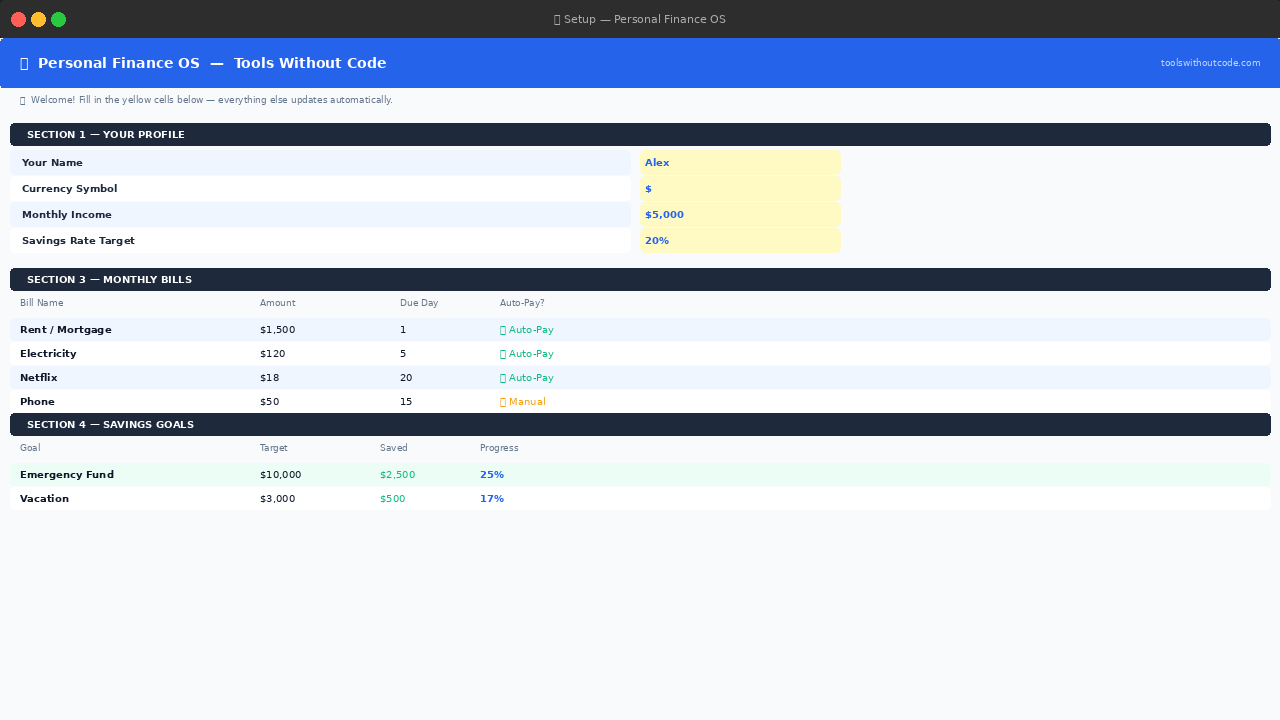
You do not need to touch a formula to configure this personal finance google sheets template. Yellow cells are the only cells you’ll ever type into across all nine tabs — everything else is calculated for you.
Make your copy and open the Setup tab
Click “Get Free Template,” hit Make a Copy, then open Setup. You’ll see six labeled sections: Profile, Categories, Bills, Savings Goals, Debts, and Assets & Liabilities.
Fill in each Setup section once
Enter your monthly income and currency symbol, review the 20 default categories, list your bills with due dates, and enter debts with balance, rate and minimum payment. This takes about 10 minutes and you rarely need to revisit it beyond monthly balance updates.
Delete the sample rows and start logging
Twenty sample transactions ship with the file so every tab shows real numbers on first open. Select rows 3–22 in Transactions, clear contents, and start adding your own — one row per transaction, going forward.
Tip: Spend the full 10 minutes on Setup properly the first time. Rushing this step is the single biggest reason people abandon a personal finance google sheets template within the first week — half-filled categories and missing debt rates cascade into wrong numbers on every downstream tab.
Transaction Log — your only ongoing input
This is the one tab you’ll touch regularly. Every time you spend or earn money, add one row. That’s the entire ongoing workflow for this personal finance google sheets template.
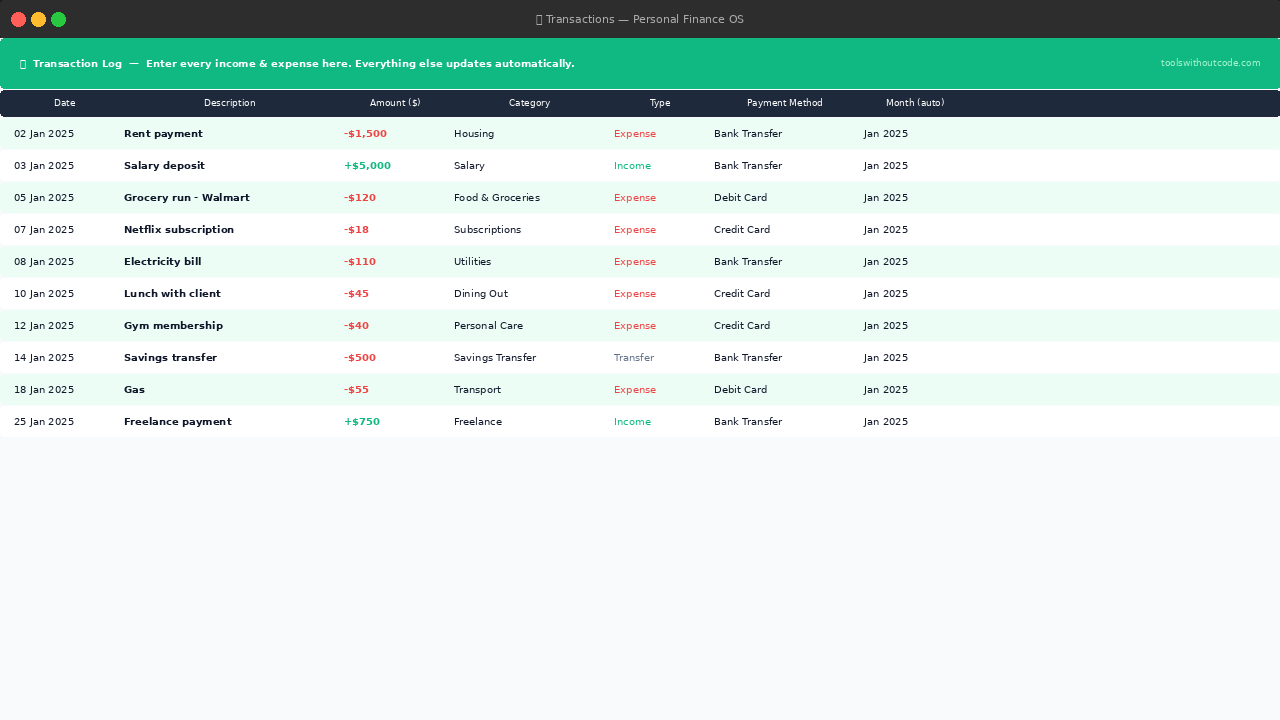
Each row has six fields: Date, Description, Amount (always positive — the Type column handles direction), Category (dropdown from Setup), Type (Income, Expense or Transfer), and Payment Method. An eighth column, Month, fills in on its own from the date — this is what every other tab in the personal finance google sheets template filters on, so nothing needs manual tagging.
The 20 sample transactions exist so every tab shows real numbers the first time you open the file. Delete them when you’re ready — rows 3 to 22, cleared, not deleted as rows, so the formulas underneath stay intact.
Dashboard — your finance tracker spreadsheet HQ
Change the month selector and every KPI card, category total and chart updates instantly. This is the finance tracker spreadsheet view most people check first each week.
Quick answer: The Dashboard is the one tab in this finance tracker spreadsheet you’ll open most often. It shows six KPI cards — income, expenses, net savings, transaction count, biggest expense and savings rate — filtered to whichever month you pick, with zero manual recalculation.
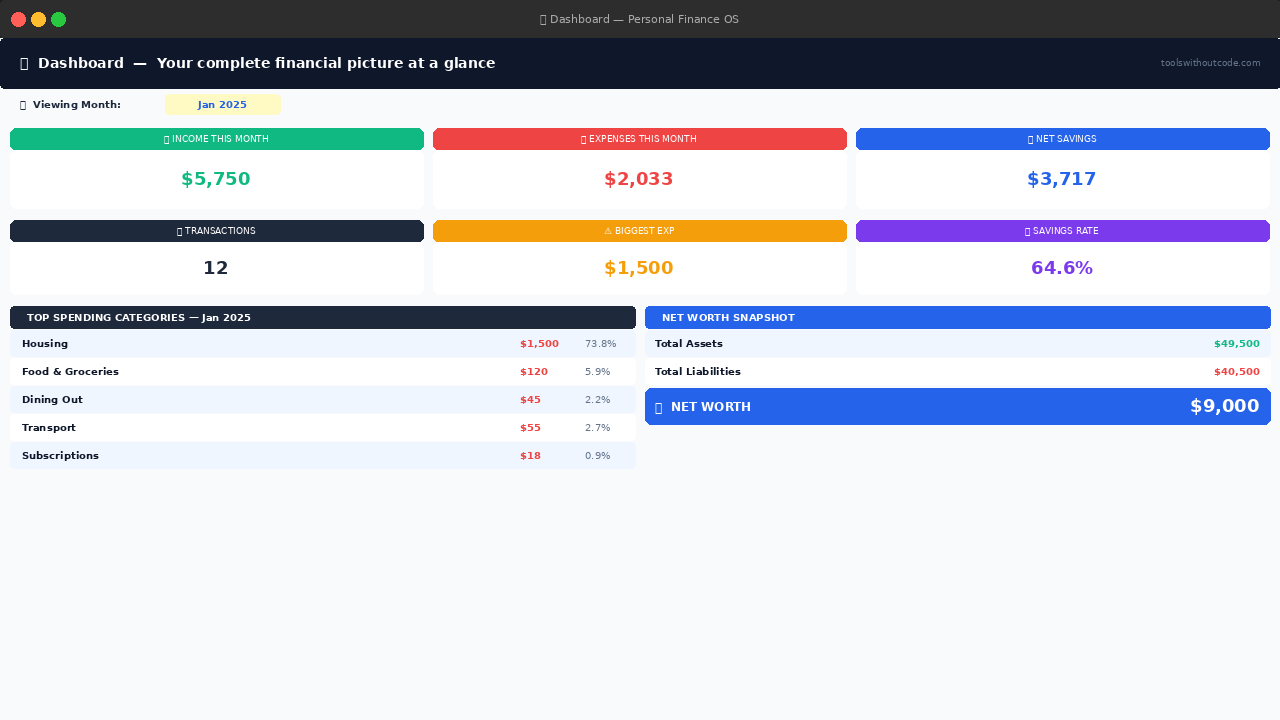
The top five spending categories show exactly where money went and what share of total spending each one represents. The net worth snapshot in the bottom right of this personal finance google sheets template links straight through to the full Net Worth tab for the detailed breakdown.
Monthly Budget — the money management spreadsheet layer
This tab is where the personal finance google sheets template earns its keep as a genuine money management spreadsheet rather than just a log. You set a budget per category once, and actuals pull in automatically every month after that.
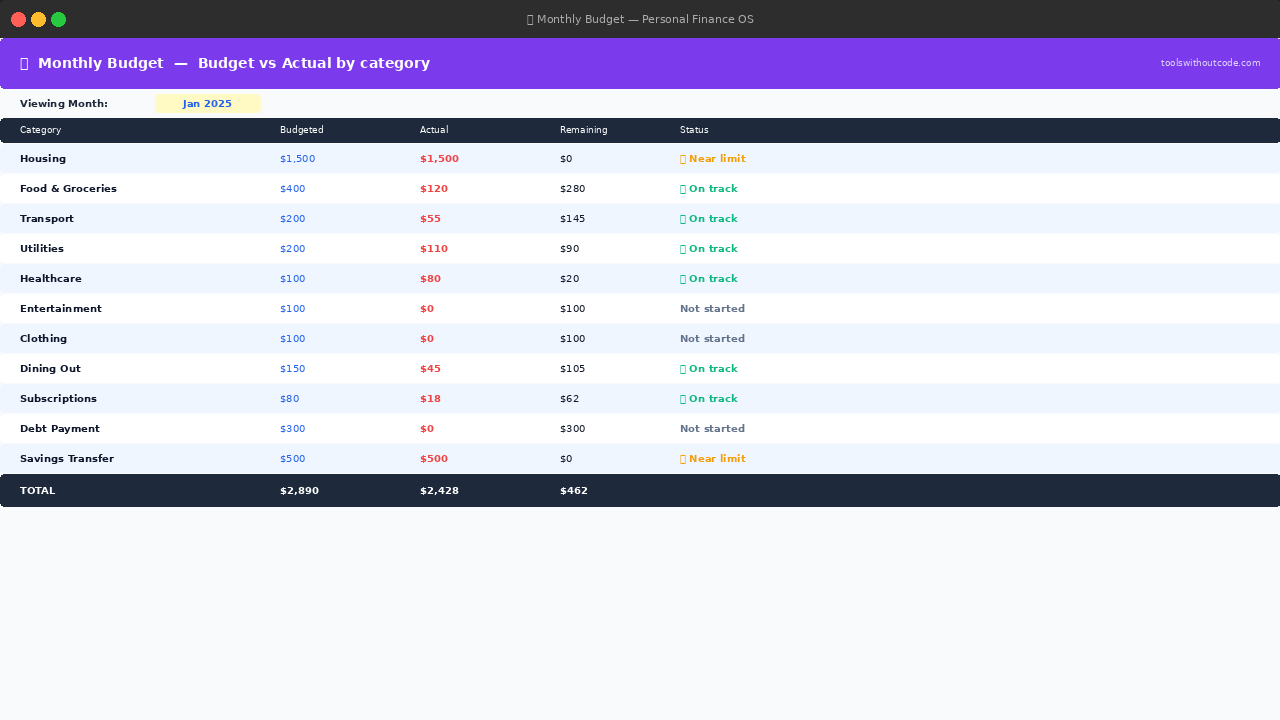
The Status column does the thinking for you. Under 85% of budget shows on track, 85–100% shows near limit, and anything past 100% flags as over budget — no mental math, just a glance. Type a new month into the selector — for example Feb 2027 — and this money management spreadsheet pulls fresh actuals straight from your Transaction Log.
If budgeting is the only piece you need and you’d rather not run the full 9-tab system, the standalone budget tracker google sheets template covers this exact workflow on its own. Freelancers with irregular income specifically should also look at the freelance expense tracker google sheets template, which handles variable-income budgeting differently than a fixed-salary layout like this one.
Bill Calendar & Savings Goals
Once Setup Section 3 is filled in, the Bill Calendar populates on its own — every bill, amount, due date and auto-pay status in one place, with a running total of committed monthly outgoing at the bottom.
The Status column shows ✅ Auto-Pay for bills on autopay and 🔔 Manual for anything you pay yourself. Knowing that total before you look at variable spending is what keeps this personal finance google sheets template from turning into just another expense log.
Savings Goals works the same way. Enter up to six goals in Setup Section 4, and this personal finance google sheets template turns them into live progress bars using filled (█) and empty (░) blocks — no chart, just an instantly readable bar per goal.
How to update savings: Log the transfer in your Transaction Log (category: Savings Transfer, type: Transfer), then update “Already Saved” in Setup Section 4. The progress bar updates the moment you do — no separate reconciliation step.
Debt Tracker — Snowball vs. Avalanche
The Debt Tracker tab in this personal finance google sheets template pulls balances, interest rates and minimum payments from Setup and calculates two numbers per debt: monthly interest cost, and months until payoff at the current payment.
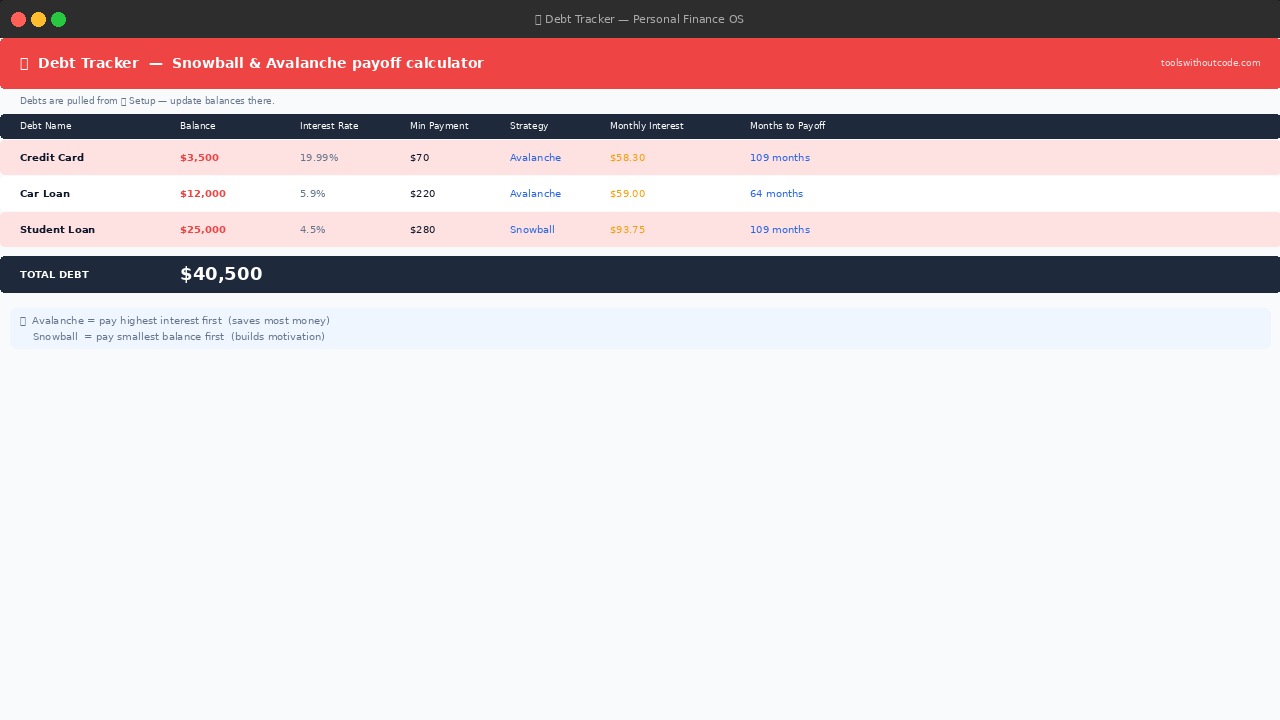
Avalanche pays the highest interest-rate debt first, which saves the most money mathematically. Snowball pays the smallest balance first, which builds momentum through quick wins. Neither is wrong — pick the one you’ll actually stick with.
If Months to Payoff shows ❌ Pmt too low, the minimum payment isn’t covering monthly interest — the balance is growing, not shrinking. Increase that payment as soon as your budget allows. For a deeper payoff simulation across multiple debts at once, the dedicated debt payoff calculator google sheets template runs more scenarios side by side than this tab is built for.
Net Worth & Annual View
The Net Worth tab in this personal finance google sheets template pulls assets and liabilities straight from Setup and calculates your net worth as a single hero number. Update balances in Setup as debt shrinks and savings grow, and the number moves with it.
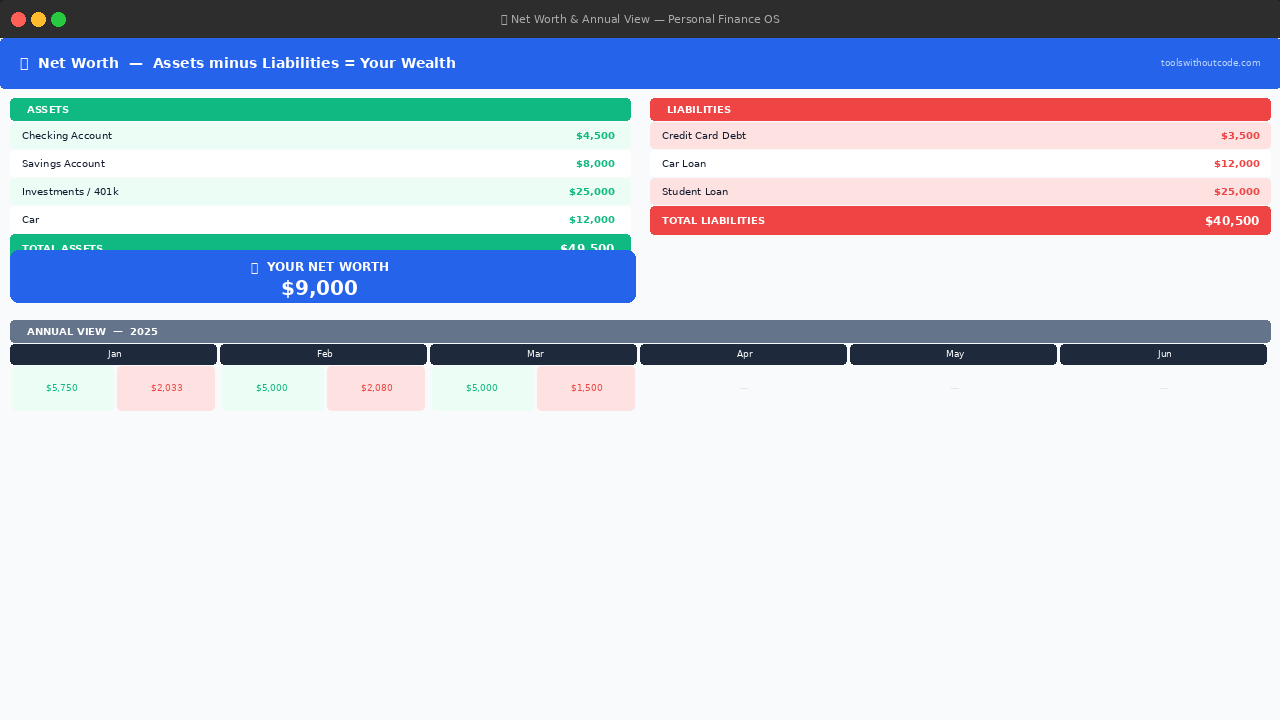
Annual View shows a full 12-month grid: income, expenses, net savings and savings rate per month. Switch the year selector to compare this year against last, or to plan ahead. For a version of this that tracks net worth on its own with a longer historical view, see the dedicated net worth tracker google sheets template.
Personal finance Excel template vs. this Google Sheets version
If you searched for a personal finance excel template and landed here instead, the short version is: the math is identical, but the collaboration and access model is different.
| Factor | Personal Finance Excel Template | This Personal Finance Google Sheets Template |
|---|---|---|
| Access | Requires Excel or Excel Online | Any browser, free Google account |
| Mobile use | Excel mobile app, heavier UI | Google Sheets app, built for quick edits |
| Sharing with a partner | Email file back and forth, or OneDrive | Share link, both edit live |
| Setup speed | Same 6-section Setup logic | Same 6-section Setup logic |
| Cost of going wrong | Merge conflicts on shared files | Google Sheets handles concurrent edits natively |
The real trade-off isn’t features — it’s where the file lives. An Excel workbook is a local file that gets emailed around and forked into “v3 FINAL final.xlsx” copies. A personal finance google sheets template stays in one shared link instead.
If you specifically need offline access with zero internet dependency, Excel is still the better fit. For everything else, this personal finance google sheets template works better precisely because it lives in the browser, not on one person’s laptop.
One spreadsheet for managing money vs. standalone trackers
This isn’t the only spreadsheet for managing money on Tools Without Code — it’s the connected version. Every other template in the library does one job well; this one does six jobs from a shared data source.
When to use the standalone versions instead: if you only care about one thing — say, habit consistency around no-spend days — a focused tool like the google sheets habit tracker template is lighter than running the full system just for that. Job hunting alongside a budget reset? The free job search tracker google sheets template pairs well with this one without overlapping it.
Freelancers juggling client invoices on top of personal budgeting often run this personal finance google sheets template alongside the freelance invoice tracker google sheets template — one for business receivables, one for personal cash flow, both free. If you’d rather manage money inside Notion instead of Sheets, the Notion Life OS template covers a similar all-in-one philosophy for people already living in Notion daily.
The trade-off with any all-in-one money management spreadsheet is customization depth. A standalone budget tracker can go deeper on budgeting alone than a shared tab in a 9-tab system ever will. Choose the connected version when you want one login and one file; choose standalone tools when one category of your finances needs more room than a shared tab can give it.
Who this personal finance Google Sheets template is for
This personal finance google sheets template works best for people who want one login and one file covering budget, bills, debt and net worth together — not six separate tools with six separate habits to maintain. It’s also a good fit if you’ve searched for a personal finance google sheets template before and abandoned every version you tried within a month.
Good fit: couples sharing one budget, beginners who’ve never tracked finances before, and anyone who’s abandoned three separate spreadsheets already because nothing stayed in sync. Not the best fit: if you need deep customization in just one area — say, twelve budget sub-categories per bill — a standalone tool built for that one job will out-flex a shared tab in a 9-tab system every time.
If expense categorization specifically is the only piece you actually need, the dedicated expense tracker google sheets template goes deeper on category-level detail than a shared tab in this personal finance google sheets template ever will. And if you’d rather run your habits in Notion instead of Sheets, the Notion habit tracker template covers that same ground on the other platform.
Freelancers get a specific split worth calling out. Business cash flow and personal budgeting shouldn’t live in the same tabs — client relationships belong in something like the Notion Freelancer CRM template, forward-looking cash projections belong in the cash flow forecast template, and day-to-day personal spending belongs right here in this personal finance google sheets template. Mixing all three into one tab is where most freelance budgets quietly break down.
A realistic 90-day walkthrough
Here’s what using this personal finance google sheets template actually looks like over three months, illustrated with round numbers rather than a specific claimed outcome — your real numbers will differ.
Week 1: Setup on this personal finance google sheets template takes 10–15 minutes. Categories get trimmed from 20 default down to the 14 that actually apply.
Three debts get entered with balances and rates. This is the only front-loaded work the whole system requires.
Weeks 2–4: Transactions get logged weekly, Sunday evenings, five minutes at a time. The Dashboard starts showing a real spending pattern instead of the sample data — usually the biggest surprise is one category (often “Dining Out” or “Subscriptions”) running 20–30% over what people assumed.
Month 2: The Monthly Budget tab’s Status column starts actually getting used — categories flip from ✅ to 🟡 mid-month, which is the earliest possible warning a static budget can’t give you. Debt balances get updated once, at month-end, in Setup Section 5.
Month 3: Net Worth and Annual View start showing a trend instead of a single snapshot in this personal finance google sheets template. This is usually the point where people either keep going because the habit has stuck, or the two-input design has already told you exactly which single tab is causing the drop-off.
Tips that actually move the needle
Log weekly, not daily. Pick one evening — Sunday works for most people — and log the week’s transactions in one 5–10 minute pass. Real-time logging sounds disciplined but creates more friction than it saves.
Match categories exactly. This personal finance google sheets template depends on category text matching precisely. “Dining Out” and “dining out” register as two different categories to every formula downstream.
Always pick from the dropdown — never free-type a category. It’s the single most common way people accidentally break the automation in this personal finance google sheets template.
Update debt balances monthly, not weekly. Go to Setup Section 5 at the end of each month and update each balance. Weekly updates on debt specifically don’t add accuracy — interest accrues monthly in this model, so more frequent edits just add busywork.
Review on the 1st, not the 31st. Switch the Dashboard’s month selector to the month that just ended, review where you overspent, and set next month’s budget based on that — not on a fresh guess. The full review takes about 10 minutes.
Never delete column H in Transactions. The “Month (auto)” formula there is what every other tab in this personal finance google sheets template depends on.
Hide it if it clutters your view. Don’t delete it.
📥 Get the Personal Finance Google Sheets Template
Google Sheets · 9 tabs · 396 formulas · No code · Free forever
✓ No account needed
✓ Yours forever
Common questions about personal finance Google Sheets templates
Is a personal finance Google Sheets template better than a budgeting app?
It depends on what you’re optimizing for. A spreadsheet gives you full data ownership, no subscription and total customization; a budgeting app gives you automatic bank sync and push notifications.
- Choose the spreadsheet if you want to own your data and never see a paywall
- Choose an app if automatic bank-transaction import matters more to you than customization
- Many people run both — an app for capture, this template for the connected budget-to-net-worth view
How do I track my net worth automatically in a personal finance spreadsheet?
List every asset and liability once in the Setup tab, and the Net Worth tab calculates the total automatically from that point forward. You only touch it again when a balance actually changes.
- Assets: cash, investments, property, vehicles at current value
- Liabilities: loans, credit card balances, any outstanding debt
- Update cadence: monthly is enough — daily tracking adds noise, not accuracy
What’s the best free personal finance spreadsheet for beginners?
The best free personal finance spreadsheet for a beginner is one with the fewest input tabs, since every extra input tab is a place the habit can break down. This template’s two-input design exists specifically for that reason.
- Start with just Transactions — skip advanced tabs like Debt Tracker until you have a few months of data
- Use the default categories rather than customizing on day one
- Revisit Setup monthly, not daily, to avoid burnout
Frequently asked questions
Is this personal finance Google Sheets template really free?
Yes, completely free. No email required, no premium version with locked tabs, no watermark. Click the link, make a copy, and it’s yours forever.
Do I need to know Google Sheets formulas to use this template?
No. Every formula in this personal finance google sheets template is already built in. You only ever type into yellow input cells — everything else calculates on its own.
Can I use this personal finance tracker on my phone?
Yes. Google Sheets works natively on iOS and Android, and this personal finance google sheets template opens the same way on both. The Transaction Log is the tab you’ll update on the go, and it’s built to be fast enough to fill in from a phone between errands.
Can I add more categories to this money management spreadsheet?
Yes. Go to Setup Section 2 and edit any of the 20 category cells. The Transaction Log dropdown updates automatically since it references those cells directly — no separate list to maintain.
Can my partner use the same personal finance google sheets template?
Yes. Share the file with edit access and you can both log transactions. Just avoid editing the exact same cell at the same moment — Google Sheets handles concurrent edits well but the occasional conflict can still happen.
What’s the difference between Snowball and Avalanche debt payoff?
Avalanche pays the highest interest-rate debt first, saving the most money mathematically. Snowball pays the smallest balance first, for quick psychological wins. Both work — pick whichever you’ll actually stay consistent with.
Can I use this as a personal finance excel template instead?
Not directly — it’s built and tested as a personal finance google sheets template, and some formulas may not port cleanly if you download it as .xlsx. If you specifically need Excel, search for a dedicated personal finance excel template rather than converting this one.
Can I use this for freelance or small business income?
It’s built for personal finance, but sole traders and freelancers can adapt several tabs for simple income and expense tracking. For proper invoicing, pair it with the dedicated freelance invoice tracker google sheets template instead of forcing invoicing into this one.
How is this different from the standalone budget tracker on this site?
The budget tracker google sheets template covers just budgeting, in one tab, with deeper category customization. This personal finance google sheets template covers budgeting plus bills, debt and net worth together, from two shared input tabs instead of one.
Does this personal finance Google Sheets template work outside the US?
Yes. The currency symbol is set once in Setup Section 1 and flows through every tab, so this personal finance google sheets template works the same whether you’re budgeting in USD, GBP, EUR or AUD.