
Expense Tracker Google Sheets Template: 3 Proven Secrets
This expense tracker Google Sheets template gives you a category dropdown, a month-by-month Dashboard, and a 12-month summary in four tabs. Log a purchase in under 10 seconds and see where your money goes without a bank login. Then use the 3 secrets below to keep the numbers accurate.

17 min read
✨ What’s inside this expense tracker Google Sheets template
- Setup tab holds your name, currency, tracking year, and 12 renameable categories with monthly budgets.
- Expenses tab is the only tab you type in. One row per purchase: date, category, description, amount.
- Dashboard tab rebuilds for any month when you type a month number from 1 to 12.
- Monthly Summary tab lines up all 12 months by category with an over/under budget row.
- Category dropdown keeps every row spelled the same, so a category total never splits in two.
- Three proven secrets below fix the errors that quietly skew expense totals: double counting, wishful budgets, and late warnings.
📋 Table of Contents
- What is an expense tracker Google Sheets template?
- Who is this expense tracker Google Sheets template for?
- What’s inside the template?
- Step 1: Setup tab
- Step 2: Log expenses
- Step 3: Dashboard tab
- Step 4: Monthly Summary tab
- Secret 1: Log the purchase, not the payment
- Secret 2: Set budgets from the median
- Secret 3: Run the pace check on the 15th
- 6-week walkthrough
- Common mistakes to avoid
- Expense tracker Google Sheets template vs budgeting apps
- Expense Tracker Pro: what the upgrade adds
- People also ask
- FAQ
What is an expense tracker Google Sheets template?
An expense tracker Google Sheets template is a pre-built spreadsheet where you log each purchase in one row, pick a category from a dropdown, and let formulas total spending by month against your budget. This one has four tabs, 12 categories, and a 12-month summary. It lives in your own Google Drive, with no bank login.
This template works the same in the US, UK, and Australia. You set the currency symbol once on the Setup tab and every total follows.
Subscription budgeting apps pull transactions from your bank. This expense tracker Google Sheets template skips that step, so you type each row yourself. That is slower per entry, but it makes you look at every number.
If you are weighing the two routes, this Google Sheets budget tracker vs apps comparison puts them side by side.
Annualize anything under $60 a month. Coffee at $5.50 four times a week costs $1,144 a year, five $11 subscriptions cost $660, and three $14 food orders a week cost $2,184. Those example numbers total $3,988, and no single purchase felt big.
Who is this expense tracker Google Sheets template for?
This template suits anyone who wants clarity on spending without running a full budgeting system.
- People starting to track spending, because setup takes about 5 minutes.
- Budgeting app dropouts who want no bank login and no subscription.
- Privacy-minded users, since the file sits in your own Google Drive.
- Job seekers watching their runway can pair it with the free job search tracker Google Sheets template to follow applications and spending in two tabs of the same habit.
- Couples and households who want one shared sheet and one set of categories.
This template covers spending only. For income planning, savings goals, and debt rows, the free Budget Tracker Google Sheets template is the next step up.
If you want money beside tasks, goals, and habits, the Notion Life OS template pulls them into one dashboard, and the Personal Finance OS in Google Sheets keeps the whole money picture in a single workbook. Prefer Notion for money? The Notion budget tracker template runs on the free Notion plan.
What’s inside the expense tracker Google Sheets template?
| Tab | Its job | What you type |
|---|---|---|
| 🛠️ Setup | Name, currency, year, 12 categories, monthly budgets | Once, then rarely |
| 💸 Expenses | The log. One row per purchase | Date, category, description, amount |
| 📊 Dashboard | One month at a time, spending vs budget by category | A month number, 1 to 12 |
| 📅 Monthly Summary | All 12 months side by side with an over/under row | Nothing |
The free version has no bank import, no income field, and 12 categories. Those three upgrades sit in the Pro version, covered further down.
Step 1: How do I set up the expense tracker Google Sheets template?
Open the Setup tab first. It takes about 5 minutes, and every other tab reads from it.
Enter your personal details
Type your name in C12, your currency symbol in C13 (for example $, £, or €), and the tracking year in C14. The Dashboard header picks up your name automatically.
Rename the categories to match your life
The template ships with 12 categories: Housing, Food & Groceries, Dining Out, Transport, Health, Entertainment, Shopping, Personal Care, Education, Travel, Savings, and Other. Rename any of them in column B. The change flows to the dropdown, the Dashboard, and the Monthly Summary.
Here is a sanity check on the defaults. The U.S. Bureau of Labor Statistics reports that housing took 33.4% of average household spending in 2024, transportation 17.0%, and food 12.9%. Those three categories hold 63.3% of the money, so their budgets deserve your most careful numbers.
BLS groups food at home and food away from home under one food heading. This template splits them into Food & Groceries and Dining Out, and the second one is the slice you control.
Set a monthly budget per category
Type a spending limit for each category in column C. Do not guess. Secret 2 below shows a median method that turns three months of statements into budgets you can actually hit.
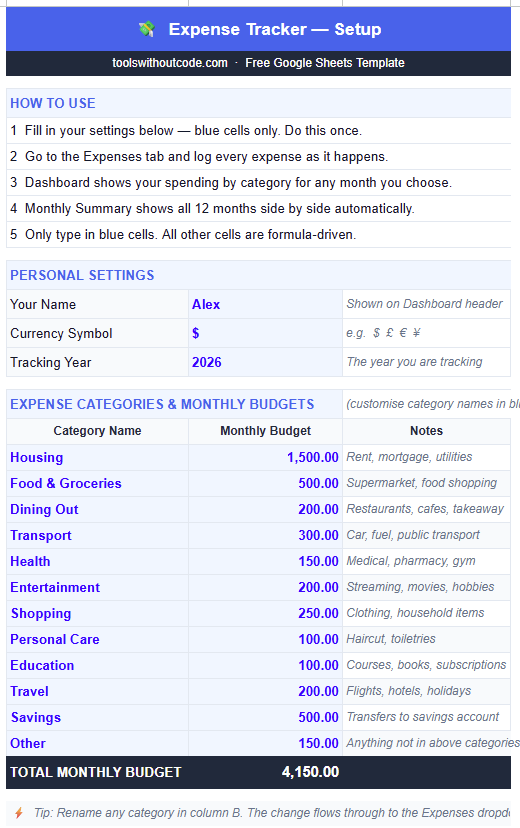
Only type in blue cells. Every other cell is formula-driven. If you overwrite a formula by accident, press Ctrl+Z (Cmd+Z on a Mac) right away.
Step 2: How do I log expenses in the expense tracker Google Sheets template?
The Expenses tab is the only tab you update in this expense tracker Google Sheets template. One row holds one purchase, and that row powers the Dashboard and the Monthly Summary.
Enter the date
Type the purchase date in column B as DD MMM YYYY, for example 15 Oct 2026. The Dashboard filters by month and year from this column.
Pick the category from the dropdown
Click column C and choose from the list that Setup feeds. Spend two seconds on the right pick, because the Dashboard is only as accurate as the category column.
Add a description and the amount
Type a short description in column D and the amount in column E. Start the description with the card or account name, such as “Card A, groceries”, so you can trace a row back to a statement later.
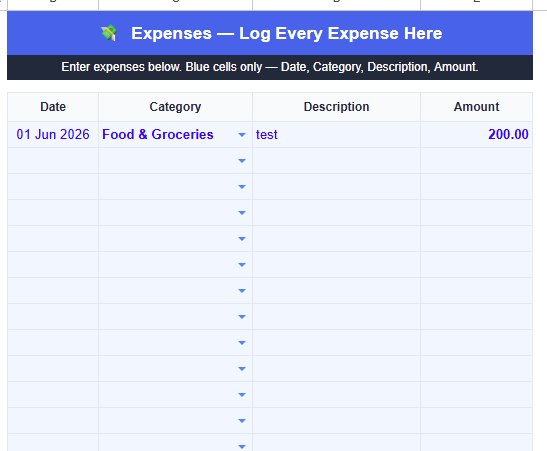
Here is the row math. The template has 300 expense rows, and 300 divided by 12 months is 25 rows a month.
Give each fixed bill its own row. Batch variable spending into one row per category per week, for example “Groceries, week of 12 Oct” with that week’s total.
Log weekly, in a fixed 10-minute slot on Sunday evening. Pull sources in this order, starting with the debit card app, then the credit card app, cash notes, and an email search for the word “receipt”. About 6 rows at under 10 seconds each takes a minute of typing, and finding the numbers takes the rest.
Step 3: How does the expense tracker Google Sheets template Dashboard work?
The Dashboard is where this expense tracker Google Sheets template pays off. Type a month number in cell C4, such as 1 for January or 6 for June, and the whole view rebuilds for that month.
Five KPI cards sit on top: Total Spent, Monthly Budget, Remaining, Number of Transactions, and Percentage of Budget Used. Below them, the category table sets your budget against what you actually spent and flags the rows that went over.
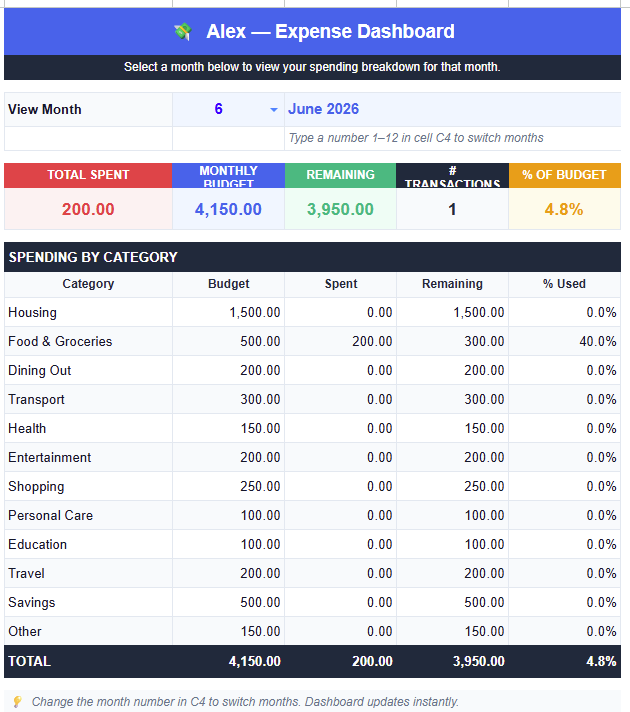
Read the Dashboard in this order. Check Remaining first, then any flagged rows, then Number of Transactions. A low transaction count in a normal month means you forgot to log, not that you saved money.
Check the Dashboard on the 15th, not the 30th. Month-end shows what already happened. Secret 3 below gives you the exact threshold to watch.
Step 4: What does the Monthly Summary show in the expense tracker Google Sheets template?
The Monthly Summary needs zero input. It builds itself from the Expenses tab and shows all 12 months side by side, every category, with totals and an over/under budget row.
After 3 or 4 months of logging, the template starts showing patterns. Read down a column to catch a category that creeps up, and read across a row to spot the months that run hot. Positive in the over/under row means money left to save, and negative means overspent.
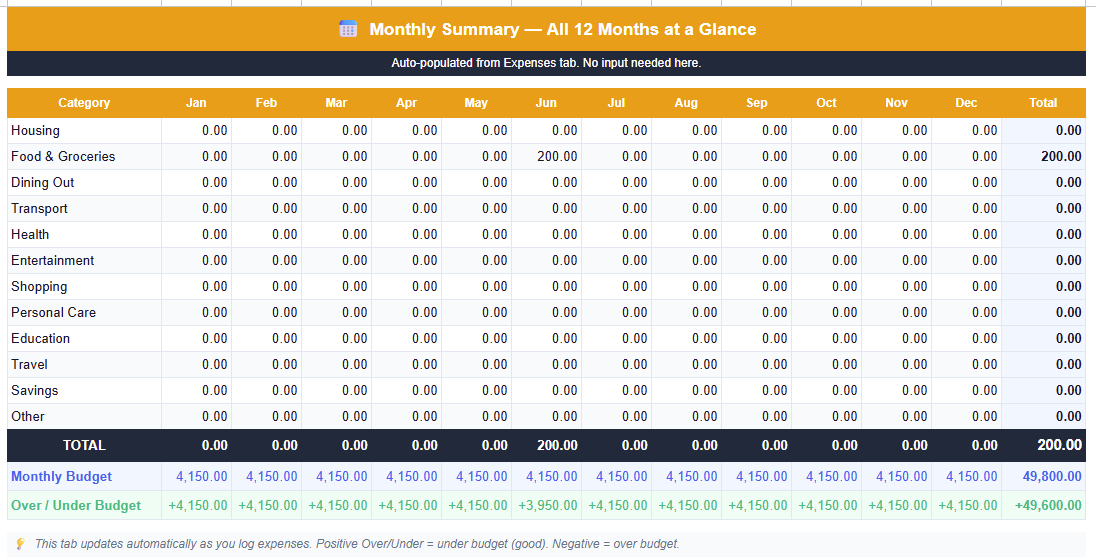
The summary shows what you spent. It does not show when cash leaves your account. For that, the cash flow forecast template projects the weeks ahead, and once a month you can type whatever you did not spend into the Net Worth Tracker Google Sheets template to watch it add up.
Secret 1 for the expense tracker Google Sheets template: log the purchase, not the payment
A credit card bill is a transfer, not a purchase. Log the purchases and then log the payment, and the same dollars count twice.
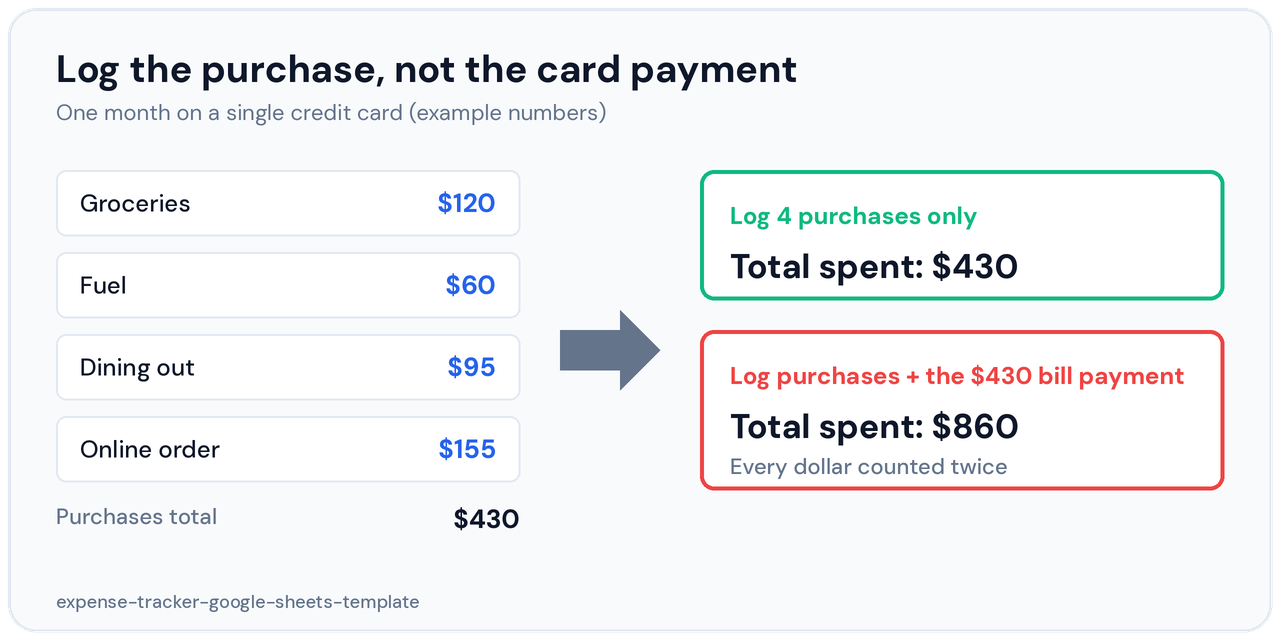
So this expense tracker Google Sheets template follows one rule. A row exists only when something was bought. Card payments, ATM withdrawals, and moves between your own accounts never get a row.
Interest and late fees do get a row, because that money bought nothing and deserves its own line. Rename Other to Fees & Interest if you carry a balance.
Use the purchase date, not the statement date. A card that closes on the 22nd splits across two calendar months on your Dashboard, and that is correct.
| Situation | What to log | Why |
|---|---|---|
| Card purchase | One row on the purchase date, in its category | The spending happened at the register |
| Card bill payment | Nothing | It only settles purchases you already logged |
| ATM cash withdrawal | Nothing. Log the cash purchases when you spend it | The withdrawal is a transfer. When you cannot recall the purchases, log one row marked “approx” |
| Refund | A negative amount in the original category | Test it first, see the note below |
| Split receipt | Two rows, same date, one per category | Groceries and household supplies on one bill still land in two categories |
| Annual bill | One twelfth each month | Secret 2 explains the smoothing |
| Shared bill | Only your share | Your Dashboard should show your spending, not your roommate’s |
| Transfer to savings | Savings category, or nowhere. Pick one | Mixing both makes months incomparable |
Test a refund before you rely on it. Type a negative amount such as -24.50 on a scratch row and watch the Dashboard total drop by exactly that amount. If your copy rejects negatives, subtract the refund from the original row’s amount instead and say so in the description.
If a card carries interest, the Debt Payoff Calculator Google Sheets template shows the date the balance reaches zero. That is a separate question from what you spent, and a separate tool keeps both answers clean.
Secret 2 for the expense tracker Google Sheets template: set budgets from the median
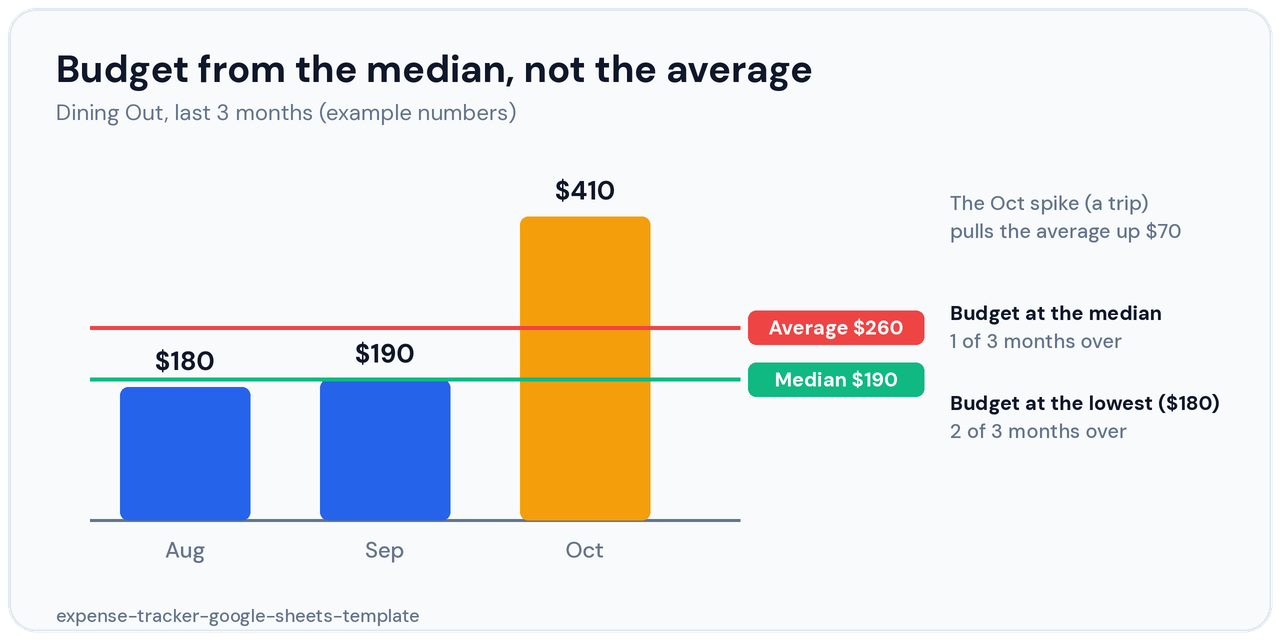
Most people set budgets from hope. Use history instead, and use the middle month, not the average. One trip or one car repair drags an average up and gives you a budget that hides $70 of slack in every normal month.
Backfill three months
Log the last three months from your statements, then open the Monthly Summary. Each category now shows three monthly totals side by side.
Take the middle total
Dining Out came to $180, $190, and $410 (a trip). The median is $190. The average is $260.
Type fixed bills exactly
Rent, phone, and insurance get the exact bill. A buffer on a fixed bill is just unspent money you will lose track of.
Add 15% to variable categories
Multiply the median by 1.15 and round to the nearest $10. For Dining Out, 190 x 1.15 is 218.50, so the budget is $220.
Recheck after two months
Tighten any category that finished under budget both months. Leave alone any category that went over because of a one-off.
Why add 15% at all? A median budget fails about half the time by definition. I ran a simulation of Dining Out to see how much buffer changes that.
The model uses a 30-day month, a 33% daily chance of eating out, a $17 median meal, and an 8% chance that a meal costs three times as much. It ran 200,000 months, and the median month came out at $218.
| Budget set at | Amount | Months over budget |
|---|---|---|
| The median | $220 | 49% |
| Median plus 15% | $250 | 35% |
| Median plus 30% | $280 | 24% |
That is a model, not your data. It shows the trade-off, since each step of buffer buys fewer red months at a real cost.
Treat the 15% as a dial you turn after two months of your own history. A budget that is red every month stops meaning anything, and the Budget Tracker Google Sheets template adds the income side if you want budgets tied to what you earn.
Spread annual bills across 12 months. Car insurance of $720 paid in March makes March look like a disaster, so rename Other to Annual Bills, budget $60 a month, and log $60 each month. Your bank balance still drops $720 in one month, and the cash flow forecast template covers that timing.
Secret 3 for the expense tracker Google Sheets template: run the pace check on the 15th
A month-end review tells you what already happened. A check on the 15th leaves 15 days to change it.
Divide Spent by Budget for each variable category on the Dashboard. At 50% on day 15, you are on pace to land exactly on budget. The real question is where to set the alarm, because spending is lumpy and a single big dinner can fake an overrun.
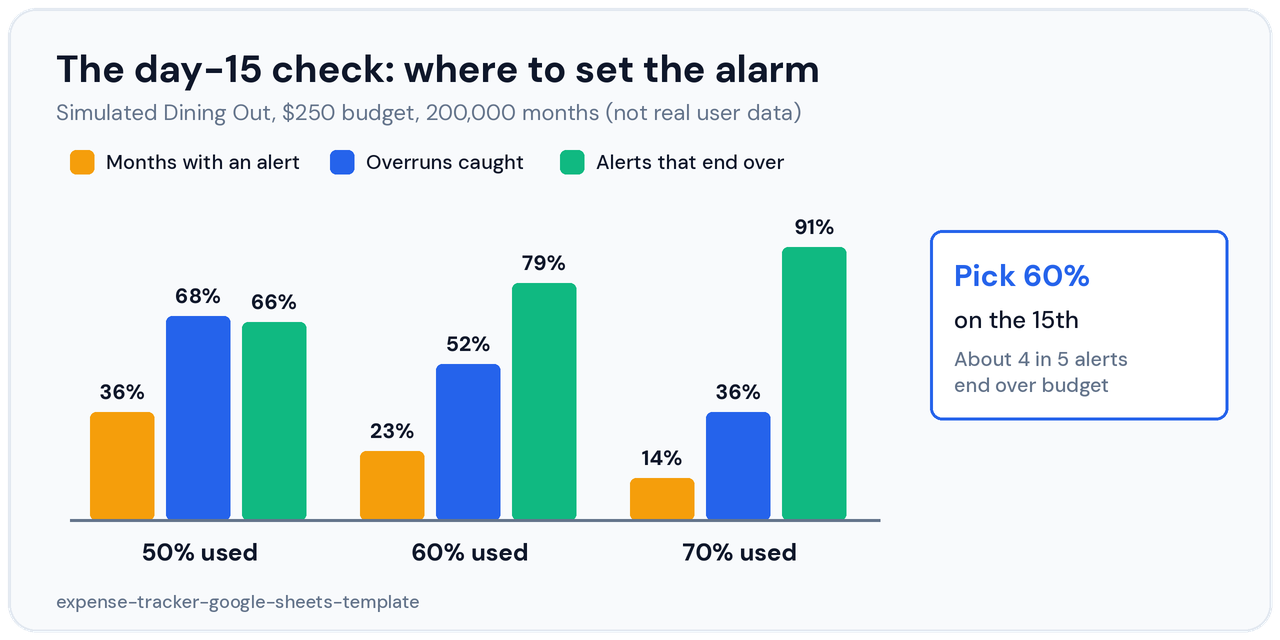
| Alarm at (share of budget used on day 15) | Months with an alert | Overruns caught | Alerts that end over budget |
|---|---|---|---|
| 50% | 36% | 68% | 66% |
| 60% | 23% | 52% | 79% |
| 70% | 14% | 36% | 91% |
I use 60%. About 4 in 5 alerts (79%) end over budget, and alerted months averaged $311 against the $250 budget in the simulation. At 50% a third of alerts are false alarms, and at 70% you stay quiet in months that were already sliding.
Log through the 14th first
The check is only as reliable as your data. Run your Sunday slot, then look.
Open the Dashboard for the current month
Type the month number in C4 and read Spent and Budget for each variable category, such as Dining Out, Shopping, and Entertainment.
Divide and compare to 60%
Spent $160 of a $250 budget is 64%. That crosses the line.
Turn the alert into a daily allowance
Subtract Spent from Budget and divide by the days left. $250 minus $160 leaves $90, and $90 over 15 days is $6 a day. A daily number changes behavior, and “spend less” does not.
Skip fixed bills
Rent shows 100% on day one and tells you nothing on the 15th.
The check has a blind spot. At 60% it catches about half of eventual overruns (52%), because some overruns come from a big purchase in the second half. That is why Step 4 still matters, since the pace check catches slow leaks and the Monthly Summary catches the rest.
6-week walkthrough: building the expense tracker Google Sheets template habit
Most people drop a new tracker within two weeks, and the spreadsheet rarely causes it. The habit never gets a fair test. Here is a realistic path.
Weeks 1 and 2: log, do not judge
Open the template every Sunday and enter last week’s purchases. Skip the Dashboard. If the Sunday slot keeps slipping, a streak tracker like the habit tracker Google Sheets template or the Notion habit tracker template gives that one habit a visible chain.
Week 3: first honest look
Type the month number into the Dashboard and read it in the order from Step 3. Expect at least one surprise category.
Week 4: change one category, not five
Pick the worst performer and make one specific change, such as a lower Dining Out cap or one cancelled subscription. One change sticks. Five do not.
Week 5: read the Monthly Summary
You now have enough rows for a trend, not a snapshot. See if your week 4 change moved the number.
Week 6: decide what you need next
If logging feels automatic, the template has done its job. If typing is the part that hurts, read the comparison below before you pay for anything.
Common expense tracker Google Sheets template mistakes to avoid
Five mistakes quietly kill most tracking habits before month two.
Mistake 1: Logging the card payment too
It doubles your spending for that month. See Secret 1.
Mistake 2: Budgeting from aspiration
If every category runs red every month, the budgets are the problem. Reset them with the median method in Secret 2.
Mistake 3: Ignoring debt payments
If the same two or three categories run red each month, debt payments may be eating the room you thought you had. The free Debt Payoff Calculator Google Sheets template shows how much budget frees up, and when.
Mistake 4: Mixing personal and business spending
Business costs buried in personal categories are hard to pull out later. The Freelance Expense Tracker for Google Sheets keeps them apart from the first row, and the Freelance Invoice Tracker for Google Sheets covers the money coming in.
Mistake 5: Quitting after one red month
One red month is data. The Monthly Summary needs 3 or 4 months to become useful, so quitting early throws away the information you need.
Expense tracker Google Sheets template vs budgeting apps
| Feature | Expense tracker Google Sheets template (free) | Subscription budgeting apps | Basic notes app |
|---|---|---|---|
| Cost | Free to copy | Recurring subscription | Free |
| Entry method | Manual, weekly batch | Automatic bank import | Manual |
| Bank connection required | No | Usually | No |
| Month-by-month Dashboard | ✅ | ✅ | ❌ |
| 12-month overview | ✅ | ✅ | ❌ |
| Budget vs actual | ✅ | ✅ | ❌ |
| Customisable categories | ✅ 12 in free | Varies by app | Manual only |
| Where your data lives | Your Google Drive | The provider’s servers | Your device |
The honest verdict is that apps win on automatic import, so use this template for your first 90 days and switch to an app if weekly logging still feels impossible after that. The habit is failing at that point, and the spreadsheet is not. To compare the major options first, FinCompareLab’s guide to free budgeting apps covers the leading tools with hands-on testing.
Expense tracker Google Sheets template Pro: what the upgrade adds
The free expense tracker Google Sheets template covers what most people need. The Pro version adds five tabs for people who want automation and deeper analysis.
Bank Import + AI
Paste a CSV export from your bank and the AI categorises each transaction with your own category names via the Gemini API.
Income Log
Track income next to expenses so you see your net position next to what you spent.
Deductible Summary
Assign a deductibility percentage per category and get a total to share with your accountant. It is a tally, not tax advice.
Reimbursables Tracker
Flag an expense as reimbursable and see if it is pending, approved, or paid.
AI Reports
Generate a plain-English spending summary with one click that names your biggest problem categories.
Expense Tracker Google Sheets Template Pro: 10 Tabs With Bank Import and AI Reports
Everything in the free version, plus Bank Import + AI, Income Log, Deductible Summary, Reimbursables, and AI Reports.
✓ Income Log for your true net position
✓ Deductible summary to hand to your accountant
✓ Reimbursables tracker so nothing slips
✓ 20 categories instead of 12
✓ One-time payment, no subscription
| Feature | Free | Pro |
|---|---|---|
| Expenses tab + category dropdown | ✅ | ✅ |
| Month-selector Dashboard | ✅ | ✅ |
| 12-month Monthly Summary | ✅ | ✅ |
| Customisable categories | ✅ 12 | ✅ 20 |
| Bank CSV import + AI categorisation | ❌ | ✅ |
| Income Log | ❌ | ✅ |
| Deductible Summary | ❌ | ✅ |
| Reimbursables Tracker | ❌ | ✅ |
| AI Spending Reports | ❌ | ✅ |
| Price | Free | $9.90 one time |
📥 Get the Expense Tracker Google Sheets Template
Make a copy in your Google Drive with one click. All formulas are pre-built.
✓ Month-selector Dashboard and 12-month summary
✓ No coding needed
People also ask about the expense tracker Google Sheets template
How do I make an expense tracker Google Sheets template from scratch?
Create a sheet with Date, Category, Description, and Amount columns, add a category dropdown with Data, then Data validation, and total each category with SUMIFS. Or copy this expense tracker Google Sheets template, which already has the dropdown, Dashboard, and 12-month summary wired up.
- Build from scratch if you want to learn formulas and accept a few hours of setup.
- Copy this template if you want to log your first expense in 5 minutes.
- Either way, apply Secrets 1 to 3 above, because a blank sheet has the same double counting problem.
Does Google Sheets have a built-in expense tracker template?
As far as I know, Google Sheets has a Monthly budget template in its template gallery that works as a basic income and expense tracker for a single month. This expense tracker Google Sheets template adds a category dropdown and a 12-month summary on top of that idea.
How do you categorize expenses in an expense tracker Google Sheets template?
Use a dropdown so every row takes its category from one shared list, and start with about 12 categories. In this expense tracker Google Sheets template, split Food into Groceries and Dining Out, and rename any category that grows past a quarter of your spending.
| BLS major category (U.S., 2024) | Share of average household spending |
|---|---|
| Housing | 33.4% |
| Transportation | 17.0% |
| Food | 12.9% |
Frequently Asked Questions about the expense tracker Google Sheets template
Is this expense tracker Google Sheets template really free?
The expense tracker Google Sheets template is free to copy into your own Google Drive, with no subscription and no email required. The paid Pro version adds bank import, an income log, and AI reports. The free version works on its own and does not expire.
How is an expense tracker Google Sheets template different from a budget tracker?
An expense tracker Google Sheets template records what you already spent and shows patterns over time. A budget tracker also plans income, savings goals, and debt before the month starts. Build the logging habit here, then move to the free Budget Tracker Google Sheets template when you want the full plan.
How do I change the month on the expense tracker Google Sheets template Dashboard?
Type a number from 1 to 12 in cell C4 on the Dashboard tab of the expense tracker Google Sheets template. 1 is January, 6 is June, and 12 is December. Every KPI card and the category table rebuild for that month.
Can I add more than 12 categories to this expense tracker Google Sheets template?
The free expense tracker Google Sheets template has 12 categories, and the Pro version has 20. To change a name, rename it in column B on Setup. If you want more detail, merge before you add, because a category under 2% of your spending usually belongs inside another one.
Can I use this expense tracker Google Sheets template in Excel?
The expense tracker Google Sheets template runs best in Google Sheets, and you can download a copy as an .xlsx file for Excel. I built and tested it in Google Sheets only, so treat Excel as untested. Dropdowns and formulas can behave differently there.
How many expenses can I log in this expense tracker Google Sheets template?
The expense tracker Google Sheets template has 300 expense rows, which is 25 rows a month across a full year. Give fixed bills one row each and batch variable spending into one row per category per week. At 30 to 60 single-purchase rows a month, 300 rows would last only 5 to 10 months.
Is my data private in this expense tracker Google Sheets template?
The expense tracker Google Sheets template stores everything in your own Google Drive and never connects to your bank. Nobody sees the file unless you share it. The Pro AI categorisation tab is the one part that calls an outside service, the Gemini API.
Can I use this expense tracker Google Sheets template for a small business?
The expense tracker Google Sheets template tracks personal spending, so keep business costs out of it. The Freelance Expense Tracker for Google Sheets and the Freelance Invoice Tracker for Google Sheets cover solo work. For a larger business, the guide to cash flow forecasting software explains what to look for.
Can I use this expense tracker Google Sheets template with the Budget Tracker and Net Worth Tracker?
Yes, this expense tracker Google Sheets template works as a suite with the other two. It logs spending, the Budget Tracker plans income and savings, and the Net Worth Tracker shows the long-term result.
How do I handle credit cards in this expense tracker Google Sheets template?
In this expense tracker Google Sheets template, log each card purchase on the day you made it and never log the card bill payment. That would count the same money twice. Interest and late fees are the exception, so give them their own category.
Alex builds free and Pro Google Sheets and Notion templates that need no coding. Every template starts with a free version that works on its own.